













Tools
Tools lists what assistants may do on your shop. A tool that is on is offered to assistants on every page of your storefront and, when phone assistants are on, through your MCP server.
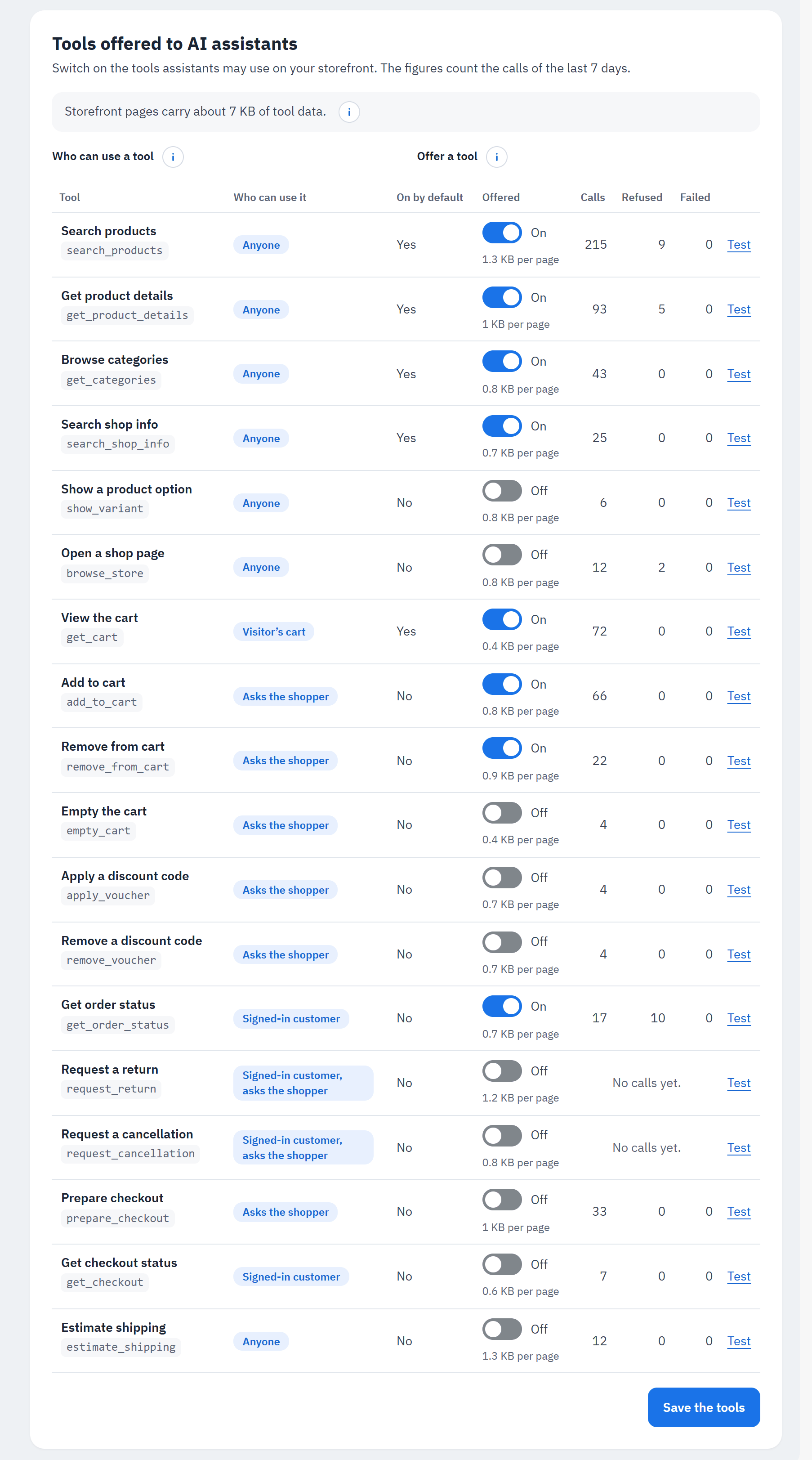
- Page size: "Storefront pages carry about N KB of tool data." Each tool you switch on adds its name, description and inputs to every page, so assistants know what it can do. The tools that are on by default come to under 4 KB.
- Who can use a tool and Offer a tool: the ⓘ explain both columns.
- The switch of each tool (Offered).
- The size each tool adds to a page.
- Test: opens the tool on the Try a tool tab of the Test page.
- Save the tools.
The tools of the module:
| Tool | What the assistant can do | Who can use it | On by default |
|---|---|---|---|
| Search products | search your catalogue, also inside a category, sorted by relevance, price, name or newest; prices as the visitor sees them, and each product's rating when it has reviews | Anyone | Yes |
| Get product details | read one product: description, price, availability, combinations, images, brand, minimal quantity, whether it can be added to the cart, its rating and up to 3 recent reviews (see Ratings and reviews), your text for AI agents (see Products for AI agents) and a cart link (see Cart links for AI assistants) | Anyone | Yes |
| Browse categories | read your category tree | Anyone | Yes |
| Search shop info | answer a shopper's question about your shop (delivery, returns, payment, contact, opening hours, terms) from your own answers, pages and contact details (see FAQ for AI agents) | Anyone | Yes |
| Show a product option | select a size, colour or other combination on the product page the shopper has open, or open the product with it (see Tools that work on the shopper's page) | Anyone | No |
| Open a shop page | open a category, a page, a brand, search results or the cart in the shopper's browser | Anyone | No |
| Estimate shipping | tell what delivery to a country costs and how long it takes, before checkout (see Shipping estimate) | Anyone | No |
| View the cart | read the visitor's own cart: lines, discounts with their code and value, totals | Visitor's cart | Yes |
| Add to cart | add a product to the visitor's own cart, with your stock, minimal quantities, customizations and cart rules | Asks the shopper | No |
| Remove from cart | remove a line or lower its quantity | Asks the shopper | No |
| Empty the cart | remove every product from the visitor's own cart, after the shopper allows it | Asks the shopper | No |
| Apply a discount code | apply a discount code the shopper gives it to the visitor's own cart, with your cart rules (see Discount codes) | Asks the shopper | No |
| Remove a discount code | remove a discount code from the visitor's own cart | Asks the shopper | No |
| Get order status | the status, total, carrier and tracking of one of the signed-in customer's orders, by its reference | Signed-in customer | No |
| Request a return | send a return request for products of one of the signed-in customer's delivered orders, under your return rules (see Return and cancellation requests) | Signed-in customer, asks the shopper | No |
| Request a cancellation | ask you to cancel one of the signed-in customer's orders that has not shipped, as a message on the order: nothing is cancelled | Signed-in customer, asks the shopper | No |
| Prepare checkout | set a saved address and a carrier on the cart and give the totals and a link to your payment page (mostly for phone assistants, see Ordering by phone) | Asks the shopper | No |
| Get checkout status | whether a prepared checkout was opened or ordered | Signed-in customer | No |
Who can use it: Anyone: every visitor's assistant, for what your storefront already shows everyone. Visitor's cart: only the visitor's own cart, in their own browser. Asks the shopper: your page shows each cart change in a window first (when Ask the shopper before cart changes is on); an assistant that controls the browser can answer it too, so the real limits are on the server. Signed-in customer: only for a customer who is signed in. Signed-in customer, asks the shopper: only for a signed-in customer's own orders, and the request is shown to the shopper first.
Tools of other modules. Other modules can add their own tools. They stay off until you switch them on, marked "Added by another module". Tools another module tried to add but that break the rules are listed under Tools other modules tried to add and that were refused, with the reason for that module's developer.
Tools that work on the shopper's page
Show a product option and Open a shop page act on the page the shopper has open in the browser, so they are offered only on your storefront, never to phone assistants. Show a product option chooses the size, colour or other combination with your theme's own options, so the page shows that combination's price, stock and pictures (Classic and Hummingbird do), or opens the product page with it. Open a shop page opens a category, a page, a brand, search results or the cart, only when your shop shows it to that visitor. Both are off by default; each adds under 1 KB to your pages.
Empty the cart removes every product from the shopper's cart (discount codes leave with them). Your page asks the shopper first, in the same window as other cart changes; from a phone assistant it goes through Two steps for every change.
Return and cancellation requests
With Request a return and Request a cancellation switched on, a signed-in customer can ask their assistant to send you a request about one of their own orders. Both are off by default. They never refund or cancel anything: you decide, in your back office, as for any request.
- Request a return lists the products of a delivered order that can still be returned, asks the shopper which ones, how many and why, and then sends a merchandise return request exactly as the return form of your order page does: your shop must take returns (Customer Service › Merchandise Returns), within your return period, and you get the request with your usual return statuses and e-mails.
- Request a cancellation works for an order that has not shipped yet. It writes the shopper's request, with their reason when they give one, as a message on the order, sent from the customer's account: you see it in the order and in Customer Service, with PrestaShop's usual e-mail about a customer message, and you answer the customer. The order itself does not change.
Before anything is sent, the shopper sees the request and allows it: in your page's window while Ask the shopper before cart changes is on, and through Two steps for every change from a phone assistant, which also needs the buyer's permission for orders. A customer can send at most 5 requests a day, and 1 cancellation request per order and day.
The Diagnostics check Return and cancellation requests warns when Request a return is on but your shop takes no merchandise returns (every return request would then be refused), with Open the merchandise returns.
Discount codes
With Apply a discount code and Remove a discount code switched on, a shopper can tell the assistant "use the code SUMMER10": the assistant applies it to the shopper's own cart, and your shop checks it exactly as on the cart page (dates, minimum amount, customer, country, carrier, products, combination with other codes). The assistant never guesses codes.
When Ask the shopper before cart changes is on, your page shows the change first, in the same window as other cart changes (see Settings): Apply the discount code or Remove the discount code with the code, the Discount, the code it Replaces when your shop does not let the two combine, and the Cart total before and after. Nothing changes until the shopper allows it. From a phone assistant, a discount code goes through Two steps for every change like any other cart change (see Safety and the confirm step).
A code your shop refuses is not applied: the assistant gets the reason (expired, used up, a minimum amount with the amount still missing, not valid with another code, for a customer account, not valid for the products in the cart …) and your shop's own message, so it can tell the shopper what to do.
No guessing. Codes your shop does not know are counted: after 5 of them in one shopper's session, or 20 from one internet address in the browser, within 15 to 30 minutes, the assistant's further tries are refused for a while (the Logs show "Too many failed attempts"). Codes that exist but are refused do not count. Visitors behind one shared address (an office, some mobile networks) share the 20.
Automatic discounts (cart rules without a code) are added or removed with the next change to the cart, as on your cart page.
Shipping estimate
Estimate shipping lets an assistant answer "how much is delivery to France, and how long does it take?" before the shopper reaches the checkout. For the shopper's cart, or for products the assistant names, it gives the carriers your checkout would offer for that country, each with its price (tax included and excluded, in the shopper's currency) and the delivery time you wrote for the carrier, plus your free-shipping threshold and the amount still missing. It uses PrestaShop's own shipping rules (zones, ranges, carrier restrictions, handling costs, free shipping) and saves nothing. When no carrier delivers to a country, the assistant is told so.
It is off by default: like every tool, it adds its description to each storefront page (Tools shows how much), and the tools that are on by default stay under 4 KB. Switch it on in Tools when your shoppers ask about delivery costs.
The Diagnostics check Delivery to your main countries warns when no carrier delivers to your shop's default country or to one of the countries you receive the most orders from (last 90 days), with Open the carriers.
Form tools on your pages
Besides the tools in the table, your storefront pages mark their forms for AI agents in browsers with WebMCP, while Mark forms for AI agents is on (Settings › General, on by default). Four forms become tools that an agent fills in but never sends: the shopper always presses the button.
open_search_results_page: the search form. The agent opens your search results page for the shopper; to read product data, agents use Search products.fill_contact_form: the contact form. The agent fills it in; the shopper checks it and sends it. Not offered when the form asks for consent.add_this_product_to_cart: the product page. The agent chooses the options (size, colour …) and the quantity; the shopper presses "Add to cart", and the agent then gets the cart's answer. Not offered for products the shopper must personalise first.subscribe_to_newsletter: the newsletter sign-up. The agent fills in the e-mail address and reads your conditions; the shopper ticks any consent box and subscribes.
Every other form (sign-in, account, forms of other modules) is marked as not for agents, so Chrome Lighthouse counts your forms as covered. Forms Chrome cannot describe (a field without a name, radio buttons outside a fieldset, an embedded frame) and forms your theme marked itself are left alone. Browsers without WebMCP are not touched, and forms are marked only while Offer tools on this shop is on. The form tools have no switch in Tools.
The Diagnostics check Forms for AI agents lists the four form tools. With Diagnostic mode on, storefront pages also report the forms Chrome finds a problem with (for example a form of your theme or another module that uses the name of one of the module's tools, or a field without a label), and the check says what to change (see Troubleshooting).
FAQ and products for AI agents
Two pages help AI assistants understand your shop: the answers they read before they recommend it, and the product data they pick products by.
FAQ for AI agents
Before they recommend a shop, AI assistants ask about delivery, returns and payment. The tool Search shop info answers them from your own words: the answers you write on the page FAQ for AI agents, then your shop's pages and contact details.
Writing your answers
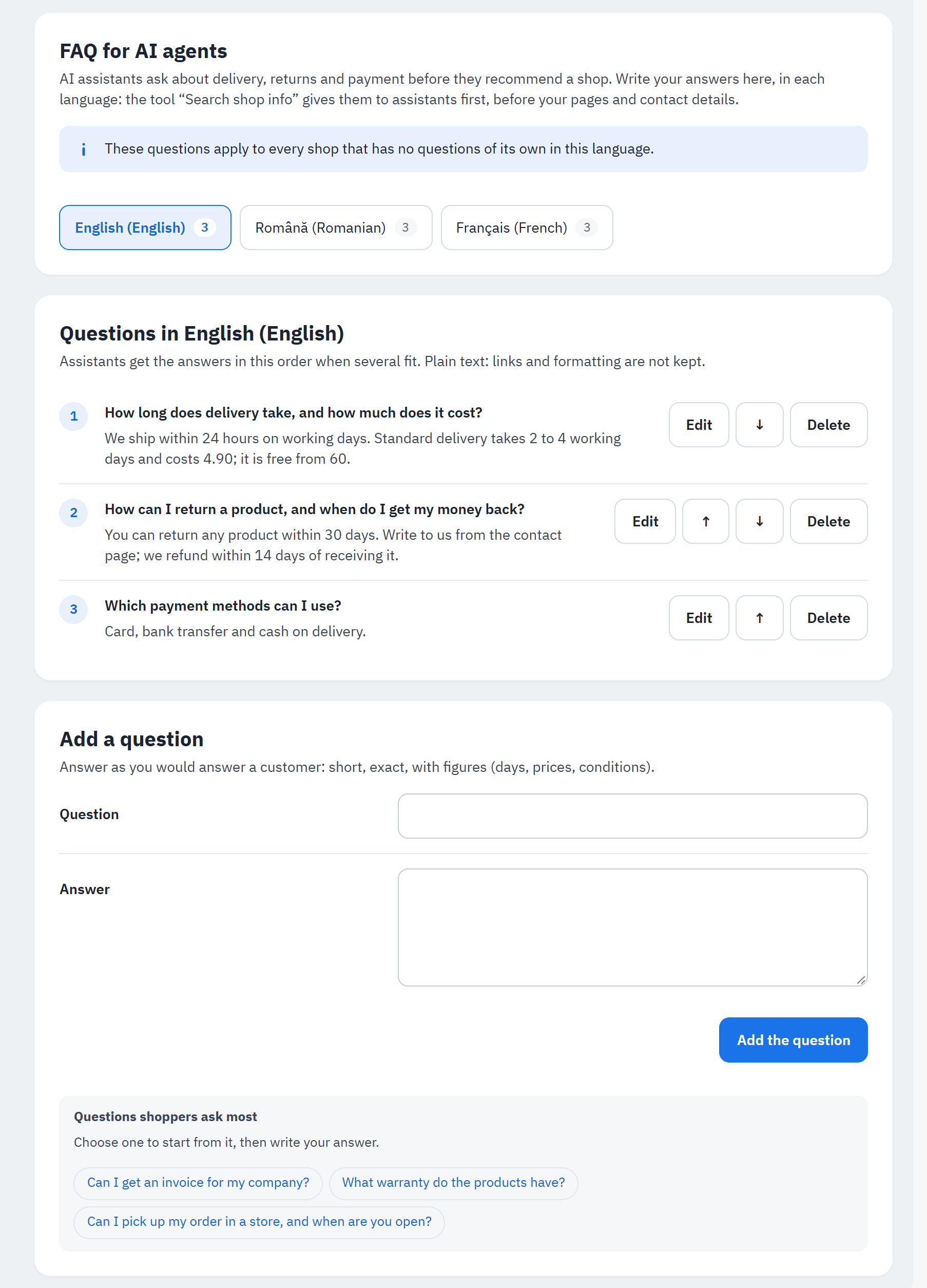
- Languages: one list of questions per language of your shop.
- The questions of the language, in the order assistants get them when several fit, each with Edit, Move up, Move down and Delete.
- Add a question: the question and its answer, then Add the question.
- Questions shoppers ask most: choose one to start from it, then write your answer.
- Open FAQ for AI agents in the module's menu and choose the language.
- Choose a question under Questions shoppers ask most, or write your own.
- Answer as you would answer a customer: short, exact, with figures (days, prices, conditions). Plain text only: links and formatting are not kept.
- Choose Add the question. Repeat for each language your shoppers use.
A list holds up to 100 questions; a question up to 255 characters and an answer up to 2,000. Like the module's settings, the lists follow the shop you choose in the back office: in one shop you write that shop's own list; in a shop group or in All shops, a list that every shop without questions of its own in that language uses. A shop that has no questions in the shopper's language answers with those of its default language.
How assistants find the answers
Search shop info (on by default, see Tools) looks for the best answers to a shopper's question in three places, in this order when they fit equally well:
- your FAQ for AI agents;
- your shop's pages (Design › Pages), with the passage that answers and the link to the page;
- your shop's contact details and your stores with their opening hours.
It gives the assistant up to 5 answers, best first. Questions are matched in English, French, Spanish, German, Italian, Polish and Romanian, so an English question also finds a French "Retours" page. When nothing fits, the assistant is told that the shop has no answer, never an invented one, and the question appears under Questions your shop could not answer (see What AI agents asked).
Two findings of the audit Can AI agents shop here? in Diagnostics (area WebMCP and MCP readiness, see Can AI agents shop here? (the audit)) check this: Delivery and returns pages looks for a page about delivery and one about returns, by the page title or address in the shop's default language ("Delivery", "Shipping", "Returns", "Right of withdrawal"), with Add the page in Design > Pages, or answer in the FAQ for AI agents; FAQ for AI agents counts your answers, with Write the first answers while there are none.
Products for AI agents
AI assistants pick products by what your catalogue tells them. The page Products for AI agents gives each product a score from 0 to 100 with what it misses, lowest score first, and lets you write a text for AI agents for each product: notes that assistants read with the product and shoppers never see. Nothing else is changed in your products.
The score and what is missing
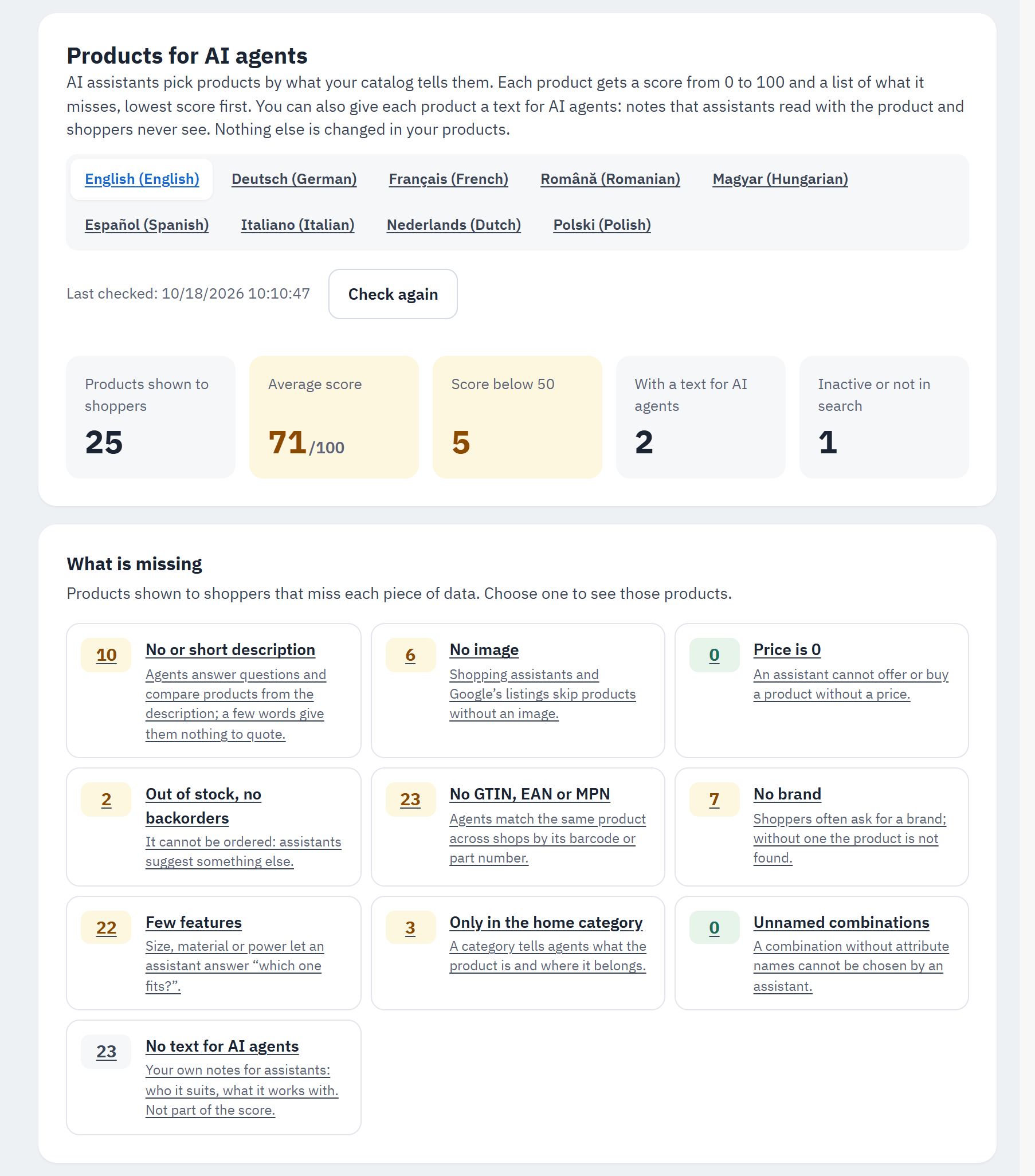
- The languages: each language of your shop has its own check, because names and descriptions are per language.
- Last checked with the date, and Check again.
- The figures: Products shown to shoppers, Average score, Score below 50, With a text for AI agents and Inactive or not in search.
- What is missing: for each piece of data, how many products shown to shoppers miss it and why assistants need it. Choose one to see those products.
- No text for AI agents: the products without a text of yours. It is not part of the score.
The score counts nine pieces of data that assistants look for:
- No or short description: agents answer questions and compare products from the description;
- No image: shopping assistants and Google's listings skip products without an image;
- Price is 0: an assistant cannot offer or buy a product without a price;
- Out of stock, no backorders: it cannot be ordered, so assistants suggest something else;
- No GTIN, EAN or MPN: agents match the same product across shops by its barcode or part number;
- No brand: shoppers often ask for a brand;
- Few features: size, material or power let an assistant answer "which one fits?";
- Only in the home category: a category tells agents what the product is and where it belongs;
- Unnamed combinations: a combination without attribute names cannot be chosen by an assistant.
The first time you open the page, it checks your catalogue: a bar shows the progress, and on a large catalogue the check goes on in steps while the page is open (Continue the check when the browser runs no scripts). The scores are kept until the next check, which runs again by itself after a day, or at once with Check again. The check only reads your products. Inactive products and products not shown in search are counted apart: assistants do not find them.
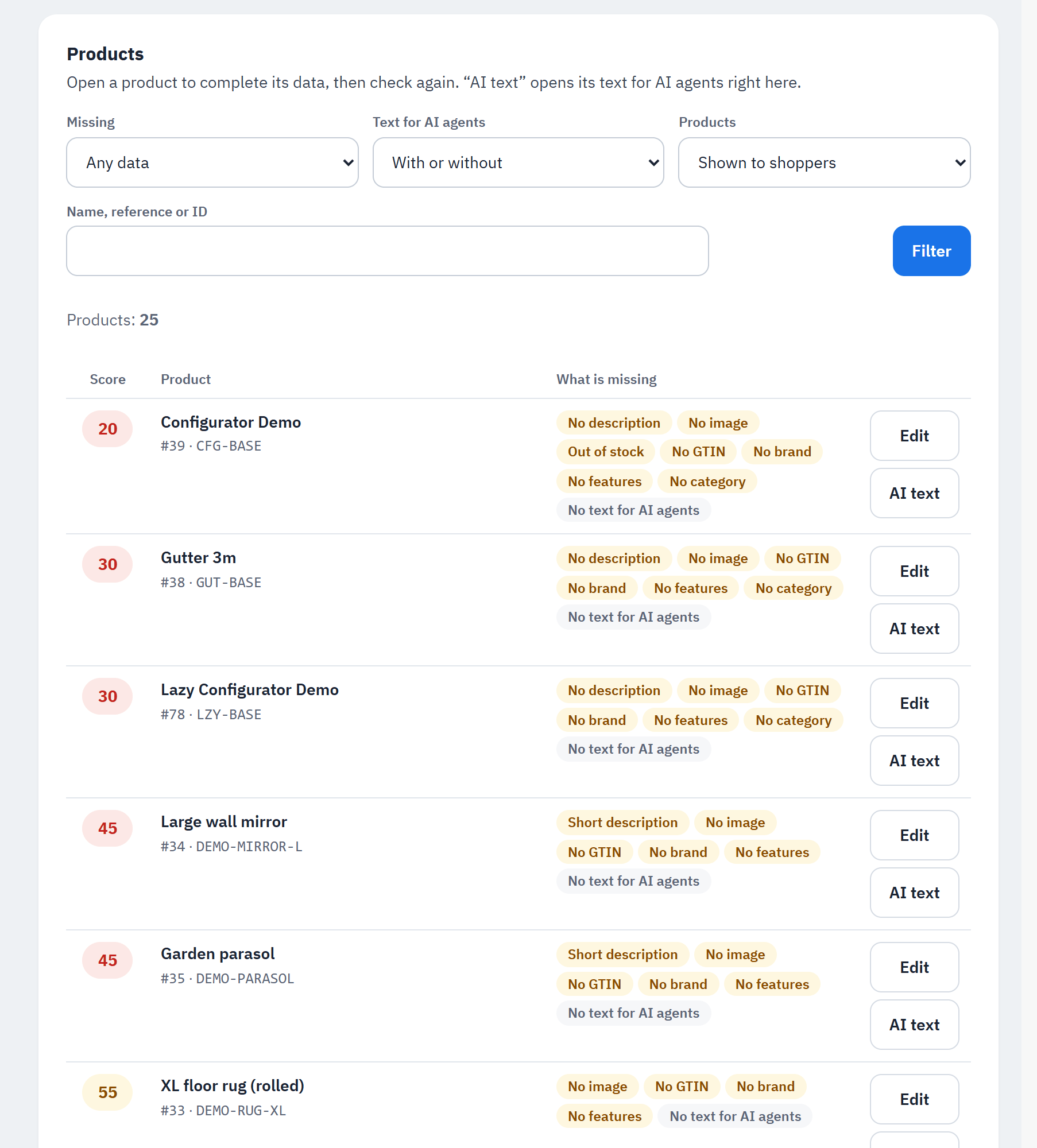
- The filters: Missing (one piece of data), Text for AI agents (With a text, Without a text), Products (Shown to shoppers, Inactive or not in search, All products) and Name, reference or ID, then Filter.
- The product's score.
- What it misses, and No text for AI agents when it has no text.
- Edit: opens the product page in a new tab, to complete its data.
- AI text: opens the product's text right under its row.
After you complete a product, choose Check again to see its new score. The Dashboard's card Products for AI agents shows the average score and the products below 50. Diagnostics' audit (product data agents read) links to this page too.
Texts for AI agents
A text for AI agents says what the description does not: who the product suits, what it works with, what to choose
instead, what is in the box. Write facts an assistant can rely on, in plain text. Assistants get it with the product
details (as agent_text in Get product details), in the shopper's language, or else in your default language.
Shoppers never see it on your shop.
Other modules, such as "OpenAI / ChatGPT Ads", can use these texts too, but only when you switch that on in that
module (a product feed may then show them in ChatGPT).
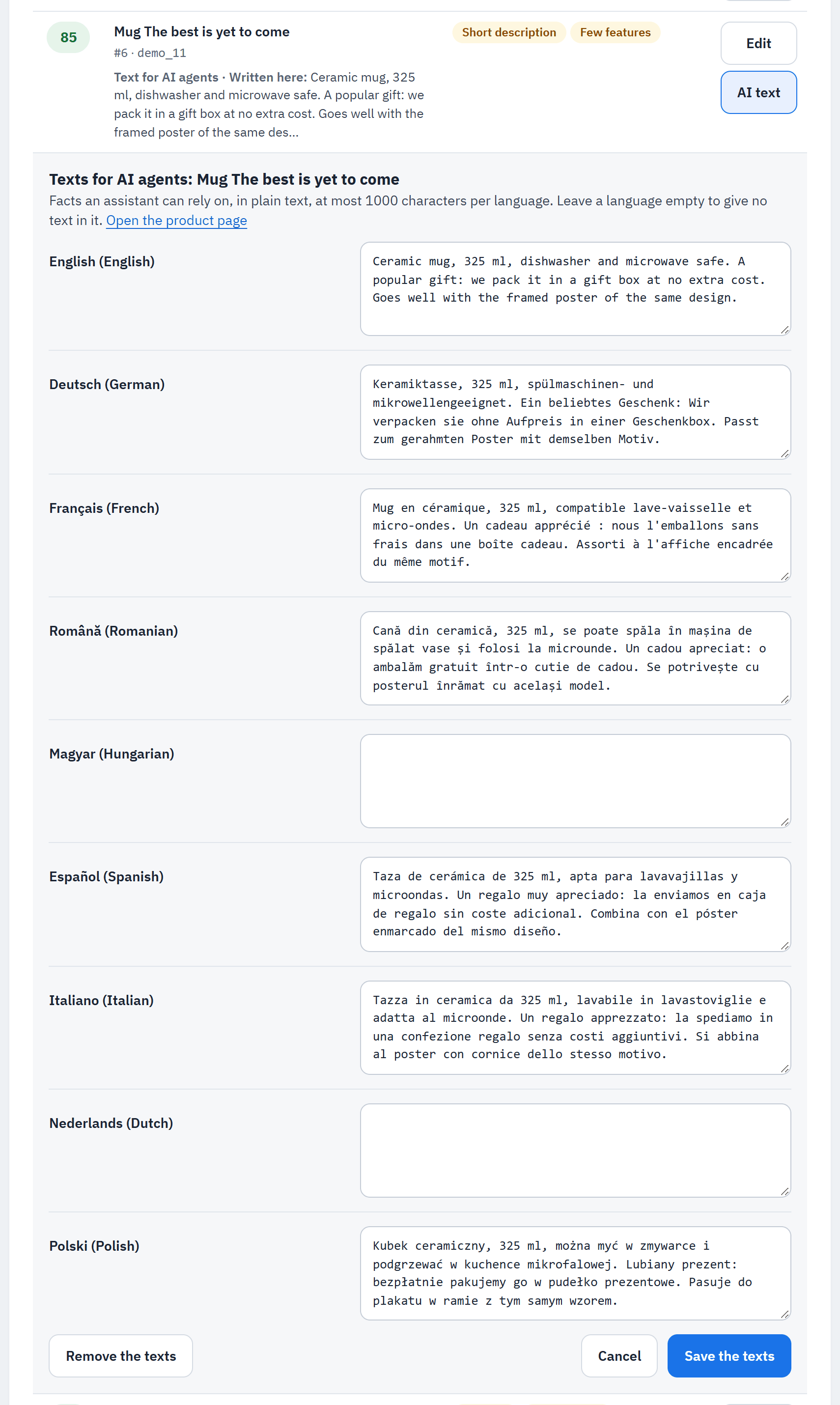
- The product's text in the list, with where it comes from (Written here, From the shop group or From all shops).
- One field per language, at most 1,000 characters. Leave a language empty to give no text in it.
- Remove the texts: removes the product's texts in every language, after you confirm.
- Cancel: back to the list without saving.
- Save the texts.
You can also write the texts on the product page itself: in the Modules tab, the block Text for AI agents has the same fields and is saved with the product; See which products have a text opens this page.
Assistants get the texts while Give AI agents your product texts is on (Settings › Product answers, on by default) and the tool Get product details is on. When one of them is off, the list says so, with a link to Settings or Tools.
Deleting a product deletes its texts. The texts hold no personal data (see Data and privacy).