













Install, upgrade, page caches and multistore
Install
- In your back office, open Modules › Module Manager and choose Upload a module.
- Drop the module's zip file in the window. PrestaShop installs it.
- Choose Configure. The module opens on its Setup guide (see the next chapter).
The installation creates the module's tables, connects it to your storefront pages and switches on the reading tools (search, product details, categories, shop information, the cart). Tools that change the cart, read orders or prepare the checkout stay off until you switch them on. Phone assistants stay off until you switch them on.
Upgrade
Upload the new zip the same way, over the installed module: PrestaShop runs the module's upgrade. Your settings, tools, connections and logs are kept. Each upgrade also checks that every table, setting and storefront connection of the new version is there and adds what an earlier version lacked; it never overwrites a value you set. One value is raised when you come from a build older than 1.0.0: Requests per minute without an account (Phone assistants › Limits) goes from 300 to its new default of 1200 when it was still at the old default.
After an upgrade, open Diagnostics once: it shows whether everything is connected (see Diagnostics, the audit and the search index).
Page caches
The tools your pages offer carry no visitor data, so a full-page cache (a cache module, LiteSpeed, a CDN) can serve the same page to everyone. A page cached before you installed the module, or before you changed the tools, still carries the old list: clear your page cache after installing, upgrading or switching tools on or off.
Multistore
Every setting can differ per shop. Choose the shop, a group or All shops at the top of the back office, as for PrestaShop's own settings; a value saved for one shop applies to that shop only. Where shops of the current view differ, the module shows Shops with another value: N next to the setting.
- Each shop has its own tools, settings and statistics, and its own MCP server with its own address and connections.
- AI keys of Test with an AI agent belong to one shop or to All shops (see Test with an AI agent).
- A few things are one for the whole installation: the robots.txt file (see the audit) and the list of trusted proxies (Settings › Advanced settings › Limits).
First setup
When you open the module the first time, it starts on the Setup guide: "Set up AI assistant access. Four steps. You can change every choice later." The four cards at the top show each step and its state; you can open a step you have reached by clicking its card.
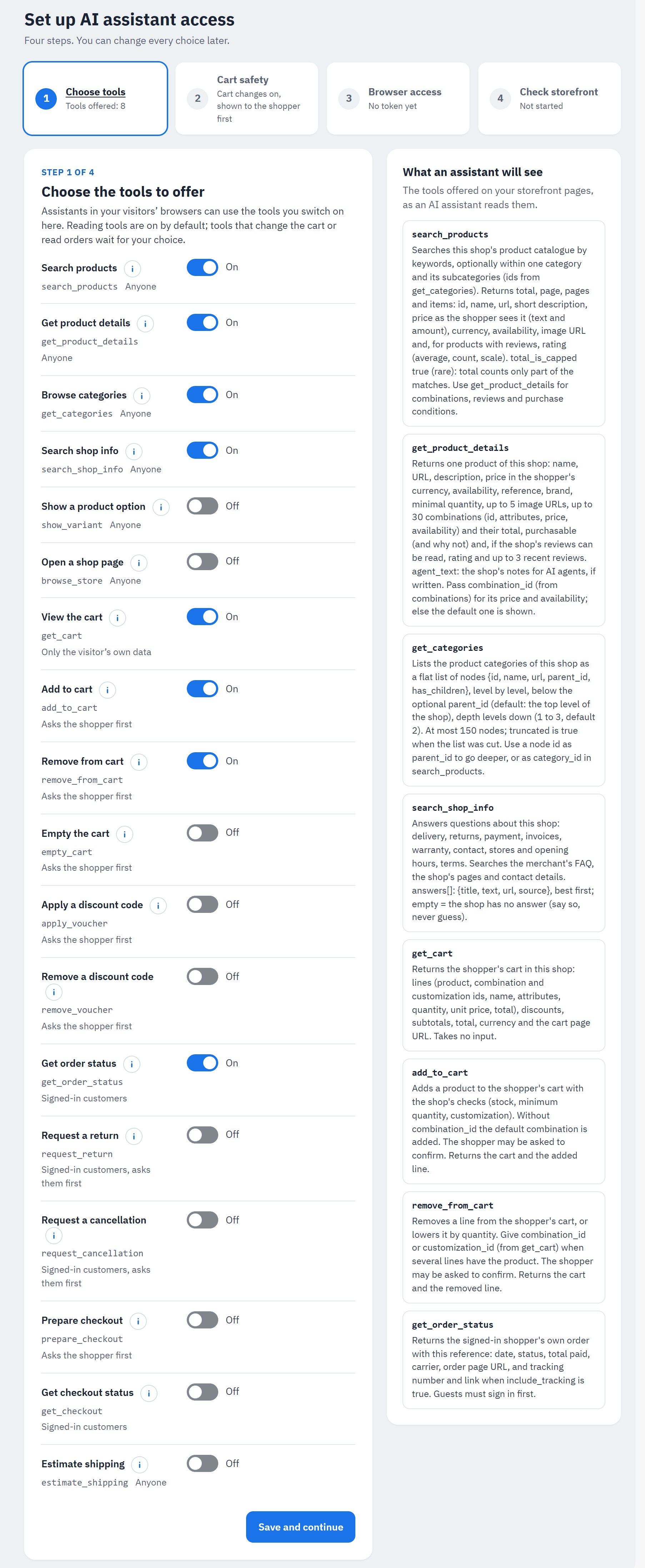
- The four steps and their state.
- One tool: its name, its technical name and who can use it.
- Its switch.
- What an assistant will see: the tools as an AI assistant reads them, with their descriptions.
- Save and continue.
Step 1: Choose the tools to offer. Switch on the tools assistants may use on your storefront. Reading tools are on by default; tools that change the cart or read orders wait for your choice. The tools are described in Tools.
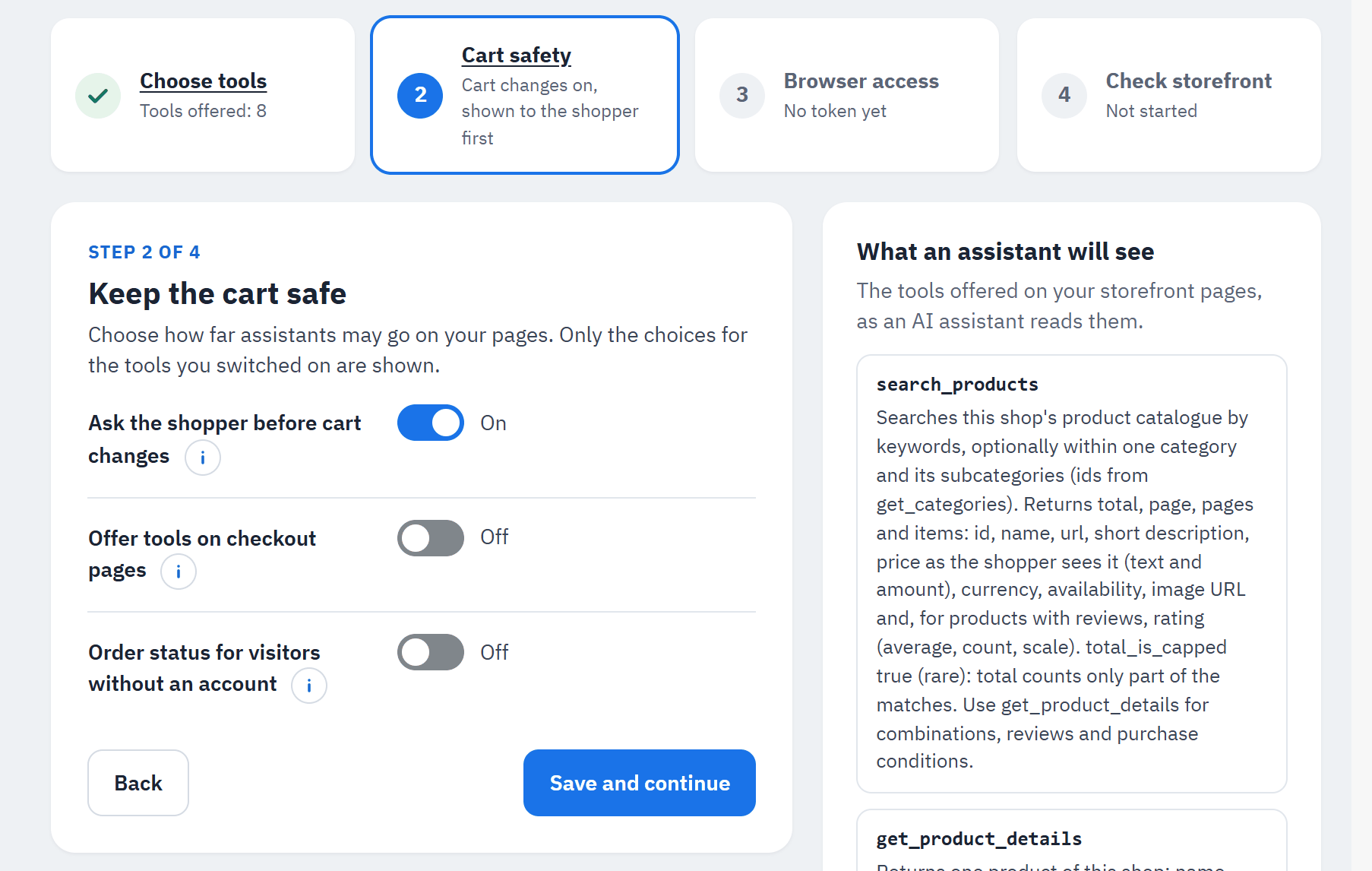
Step 2: Keep the cart safe. "Choose how far assistants may go on your pages." Only the choices for the tools you switched on are shown:
- Ask the shopper before cart changes (on by default, shown when a tool that changes the cart is on): before an assistant changes the cart, or sends a return or cancellation request, your page shows the shopper the change in a window to allow or refuse.
- Offer tools on checkout pages (off by default): the cart and checkout pages offer no tool, so nothing interferes while the shopper pays.
- Order status for visitors without an account (off by default, shown when Get order status is on).
The number of cart changes per minute keeps its default (20); you can change it later in Settings (see Settings).
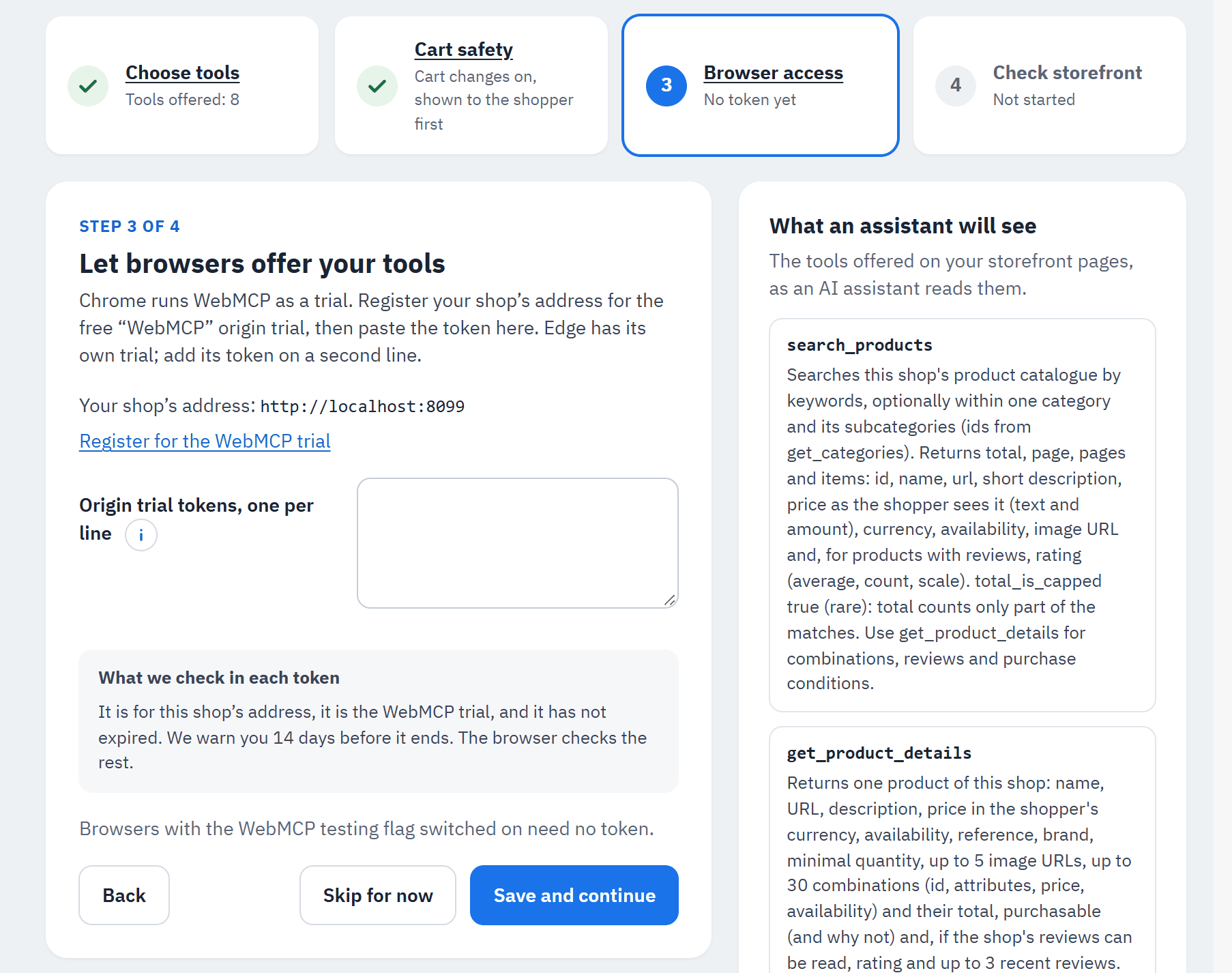
Step 3: Let browsers offer your tools. Chrome runs WebMCP as a trial. To offer your tools to every Chrome user taking part in the trial, register your shop's address for the free "WebMCP" origin trial and paste the token:
- Register for the WebMCP trial (opens in a new tab) and the address to register, Your shop's address.
- The token field. Edge has its own trial; add its token on a second line.
- Save and continue, or Skip for now: browsers with the WebMCP testing flag switched on need no token.
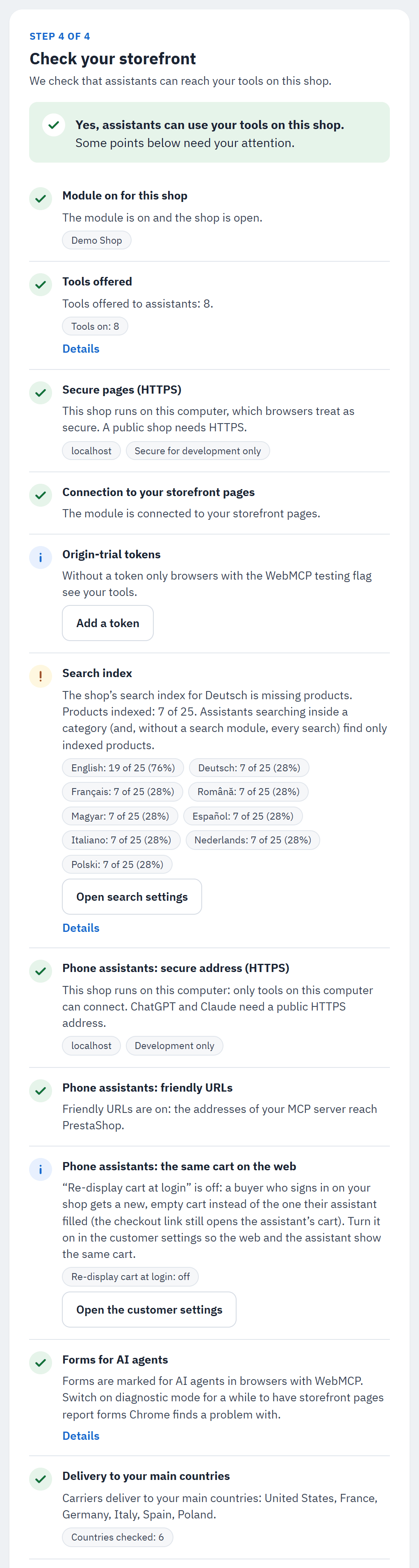
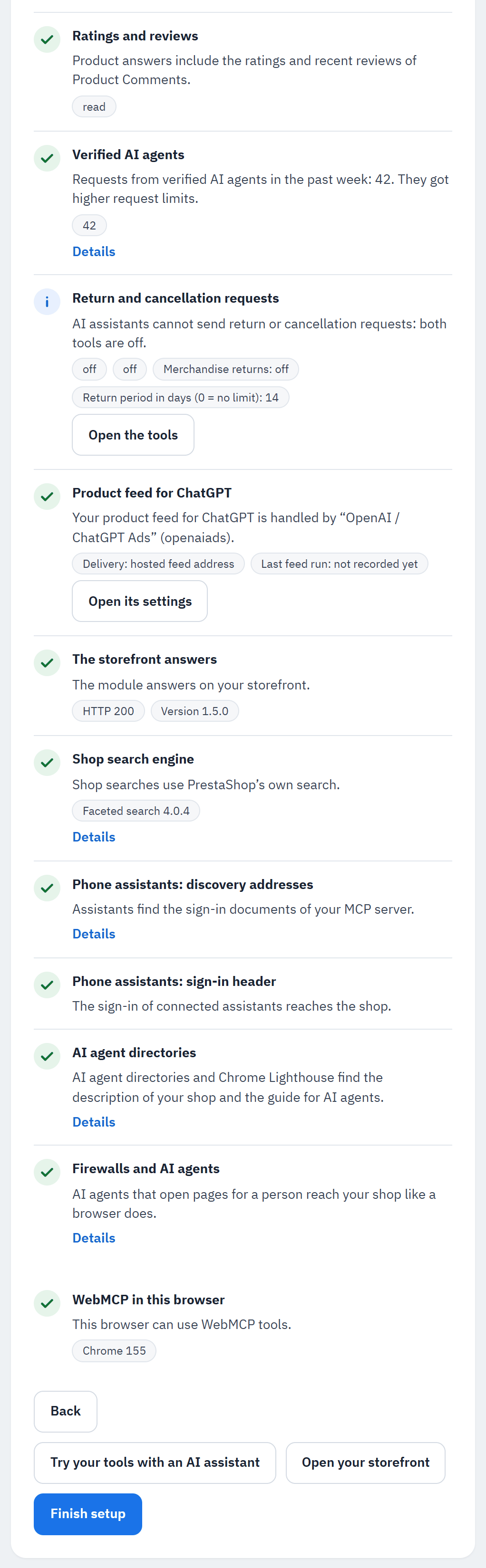
Step 4: Check your storefront. "We check that assistants can reach your tools on this shop."
- The answer: "Yes, assistants can use your tools on this shop." or "Not yet.", with "Some points below need your attention." when a check warns.
- The checks, the same as on the Diagnostics page (see Troubleshooting for each one).
- Finish setup. Try your tools with an AI assistant opens the Test with an AI agent tab of the Test page; Open your storefront opens your shop in a new tab.
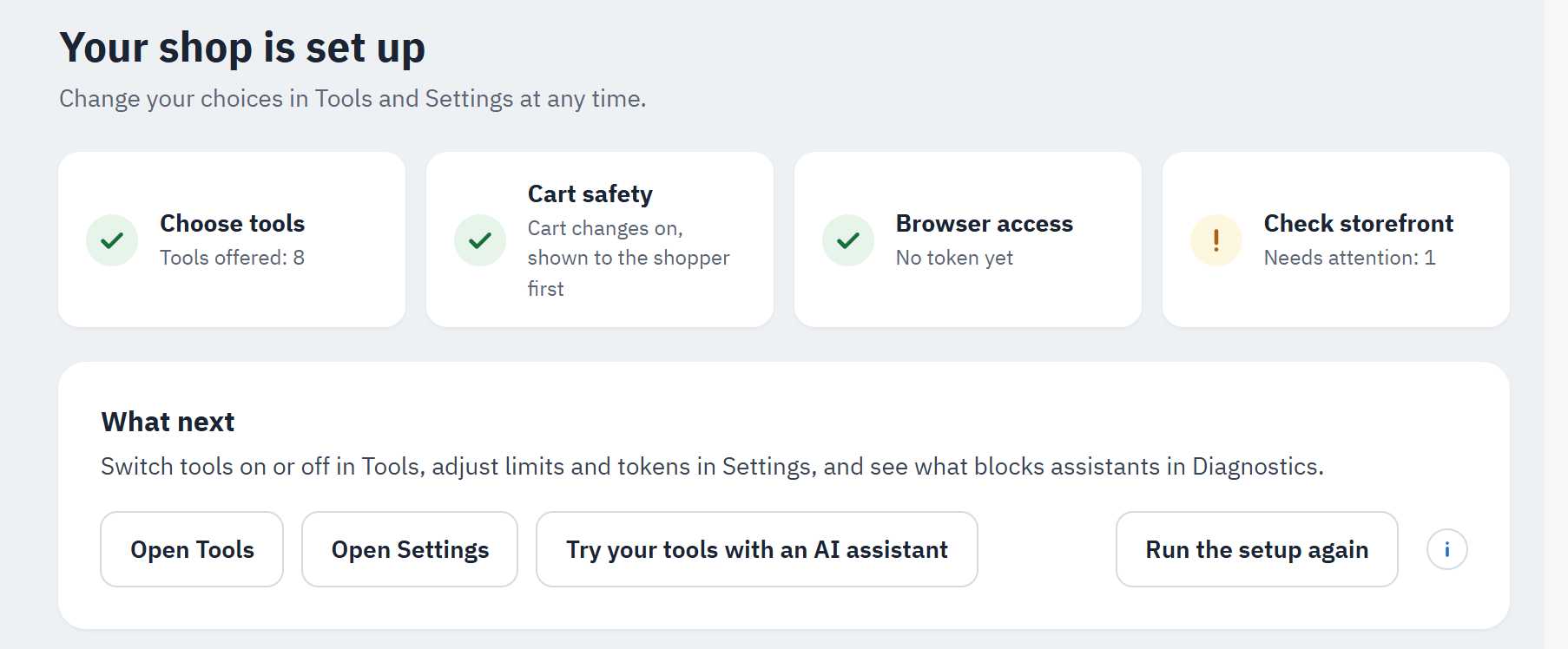
After Finish setup the guide says "Your shop is set up":
- The four steps, done.
- What next: Open Tools, Open Settings, Try your tools with an AI assistant.
- Run the setup again: shows the four steps again with your current choices. Nothing changes until you save a step; your shop keeps offering its tools meanwhile.
Once the setup is finished, the Setup guide leaves the module's menu. To open it again, use the card Setup guide on the Dashboard (Open the setup guide).