













Test with an AI agent
The module's Test page has two tabs: Try a tool runs one tool at a time (see Try a tool), and Test with an AI agent, described here, lets you try your shop the way a buyer's AI assistant uses it, from your back office. You write as a shopper would ("Do you have a red mug under 20 euros? Add one to my cart."), and an AI assistant answers by calling your shop's own tools, with the same stock, prices, minimum quantities and cart rules as the storefront. Under every answer you see what really happened.
It is a test, not a copy of ChatGPT or Claude: a buyer's assistant has its own instructions and its own way of asking the buyer, so its words will differ. What your shop answers is the same.
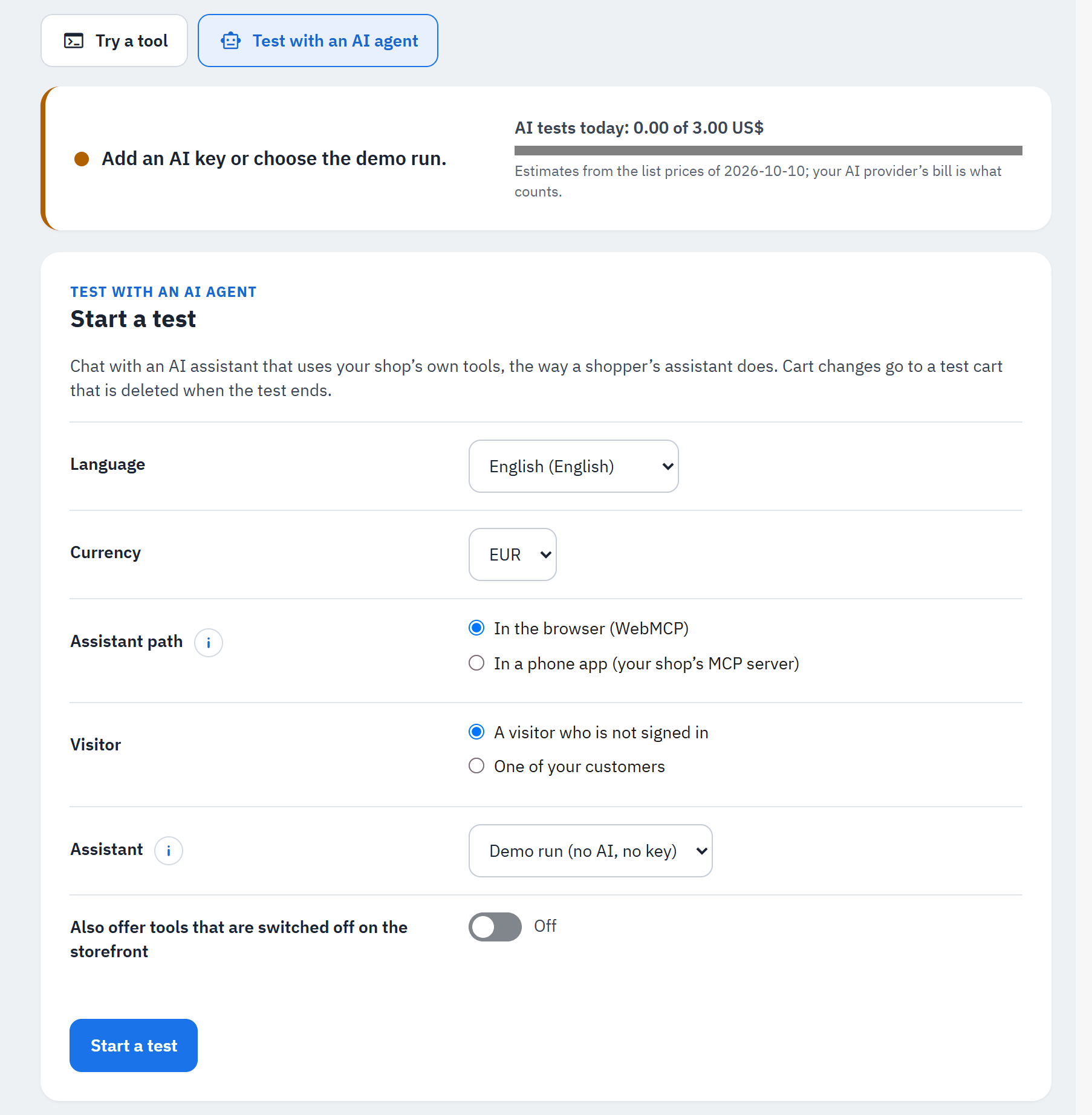
- The status line: today's spending ("AI tests today: 0.00 of 3.00 US$") and the first thing that stops a test, for example "Add an AI key or choose the demo run.".
- Assistant path, shown while phone assistants are on: In the browser (WebMCP) or In a phone app (your shop's MCP server) (see below).
- Visitor: A visitor who is not signed in or One of your customers.
- Assistant: Claude, OpenAI, Gemini (each needs your own key; "(no key yet)" when it has none) or Demo run (no AI, no key). Then Model, with the provider's list prices per 1 million tokens, or Another model (type its id).
- Also offer tools that are switched off on the storefront (off, browser path only): to try a tool before you offer it to buyers.
- Start a test. Then write your message and choose Send (Ctrl+Enter sends).
Language and Currency (and Shop, when the page shows several shops) choose where the test runs, as a buyer's visit would.
The demo run
Demo run (no AI, no key) needs no key and costs nothing. It is not an AI: every answer starts with "Demo run: no AI model, fixed steps." It takes the first word of 3 letters or more of your message and runs fixed steps: search for it, read the first product's details, add it to the cart (when Add to cart is on) and show the cart. Use it to see how a test works, or to check quickly that the shop's tools answer.
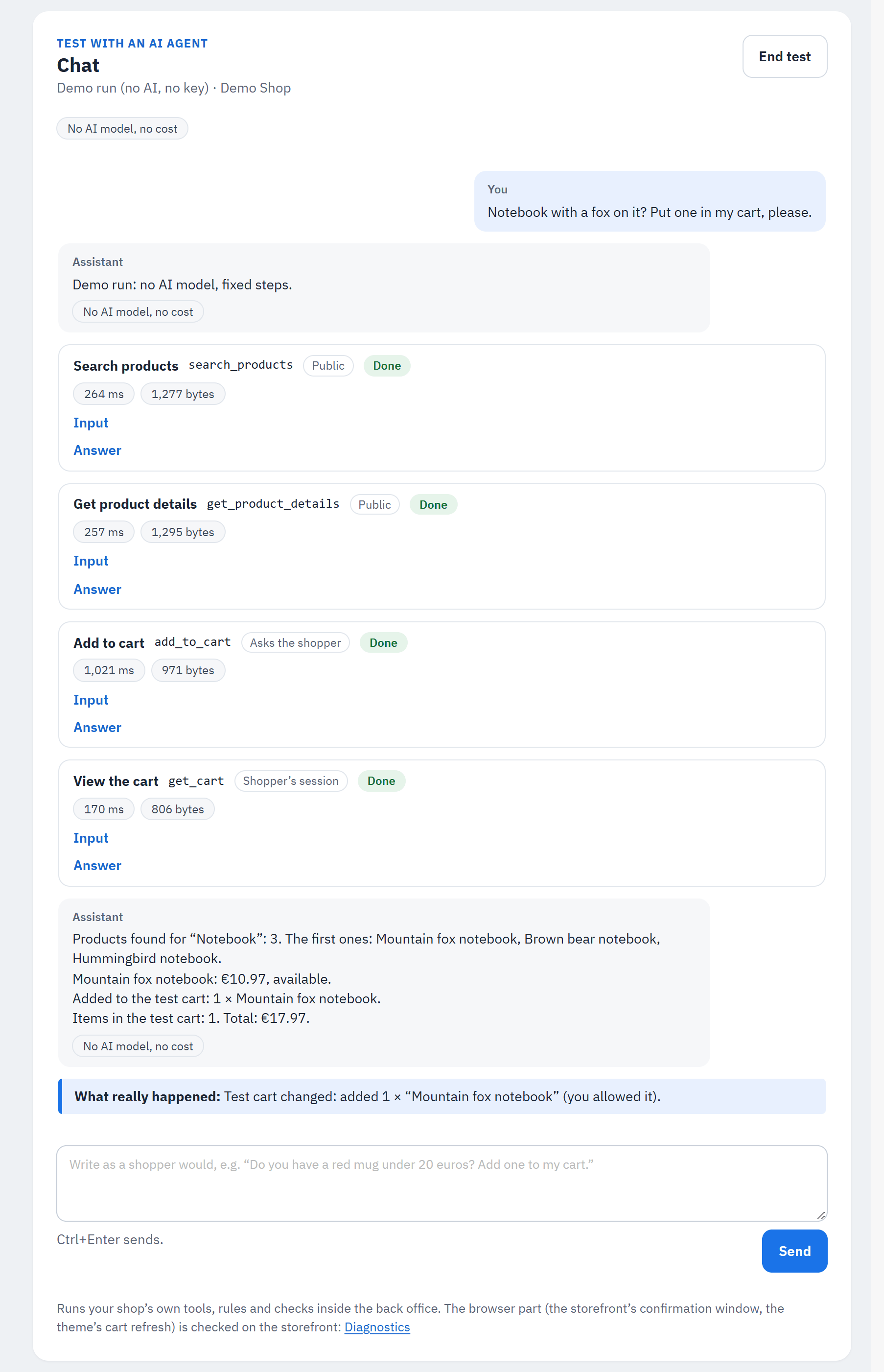
- A card for each tool call: the tool, its result, how long it took and how big the answer was; Input and Answer open what the assistant asked and what your shop answered.
- What really happened:, worked out from your shop's answers and never from the assistant's words, for example "Test cart changed: added 1 × “Mountain fox notebook” (you allowed it)." or "Nothing was changed.".
- The tokens and the estimated cost of every AI call ("No AI model, no cost" for the demo run).
- End test ends the test and deletes its test cart. Stop stops a running answer before its next tool call; New test starts again.
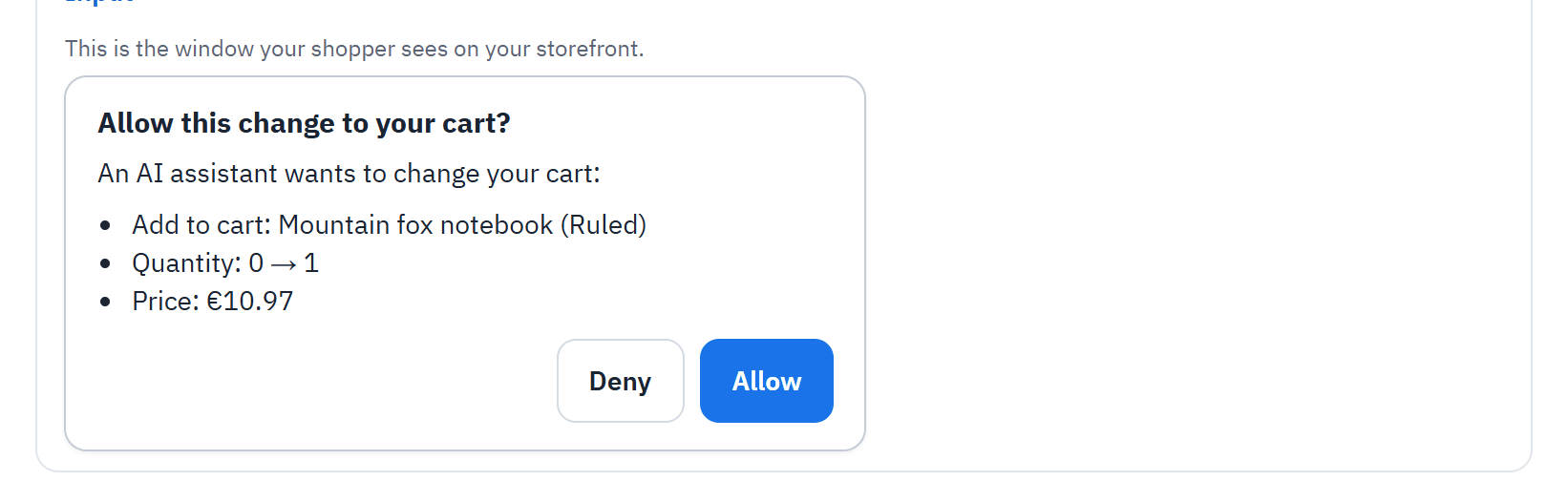
On the browser path, with Ask the shopper before cart changes on, a change waits for your answer in the window your shopper would see ("This is the window your shopper sees on your storefront."):
- The title, as on the storefront.
- The change.
- Deny / Allow.
On the phone path there is no window: a change shows as two tool cards, first "the shop asked for the buyer's confirmation first", then the change made with the confirmation.
The two paths
- In the browser (WebMCP): the tools as an assistant uses them on your storefront pages.
- In a phone app (your shop's MCP server): the tools as Claude or ChatGPT reach them through your MCP server, with the sign-in for the cart and orders and the two-step confirmation. As A visitor who is not signed in, the cart, orders and checkout tools get your shop's real answer: a request to connect an account. As One of your customers, the test acts as if that customer had connected an assistant (no connection is created, the customer gets no e-mail). Prepare checkout prepares the test cart's checkout, but the pay link of a test is never usable: it is shown masked, also to the AI provider.
Testing as one of your customers
Choose One of your customers, then Find the customer by name or email. The assistant then sees that customer's prices, orders and saved address names, as it would for them. With Claude, OpenAI or Gemini you must tick I understand that this customer's orders and prices are sent to the AI provider. It needs the PrestaShop permission to view customers. If the customer signs in on your storefront during the test, the test closes and its cart is deleted.
The test cart
A test's changes go to a new, empty cart made for that test, never to a shopper's or a customer's own cart. A test cart is never ordered. It is deleted when you choose End test, when you start your next test in that shop, after 2 hours without activity (30 minutes when you test as a customer), and when the module is uninstalled. While it exists, modules that watch carts (abandoned-cart reminders, statistics) may see it.
AI keys, costs and limits
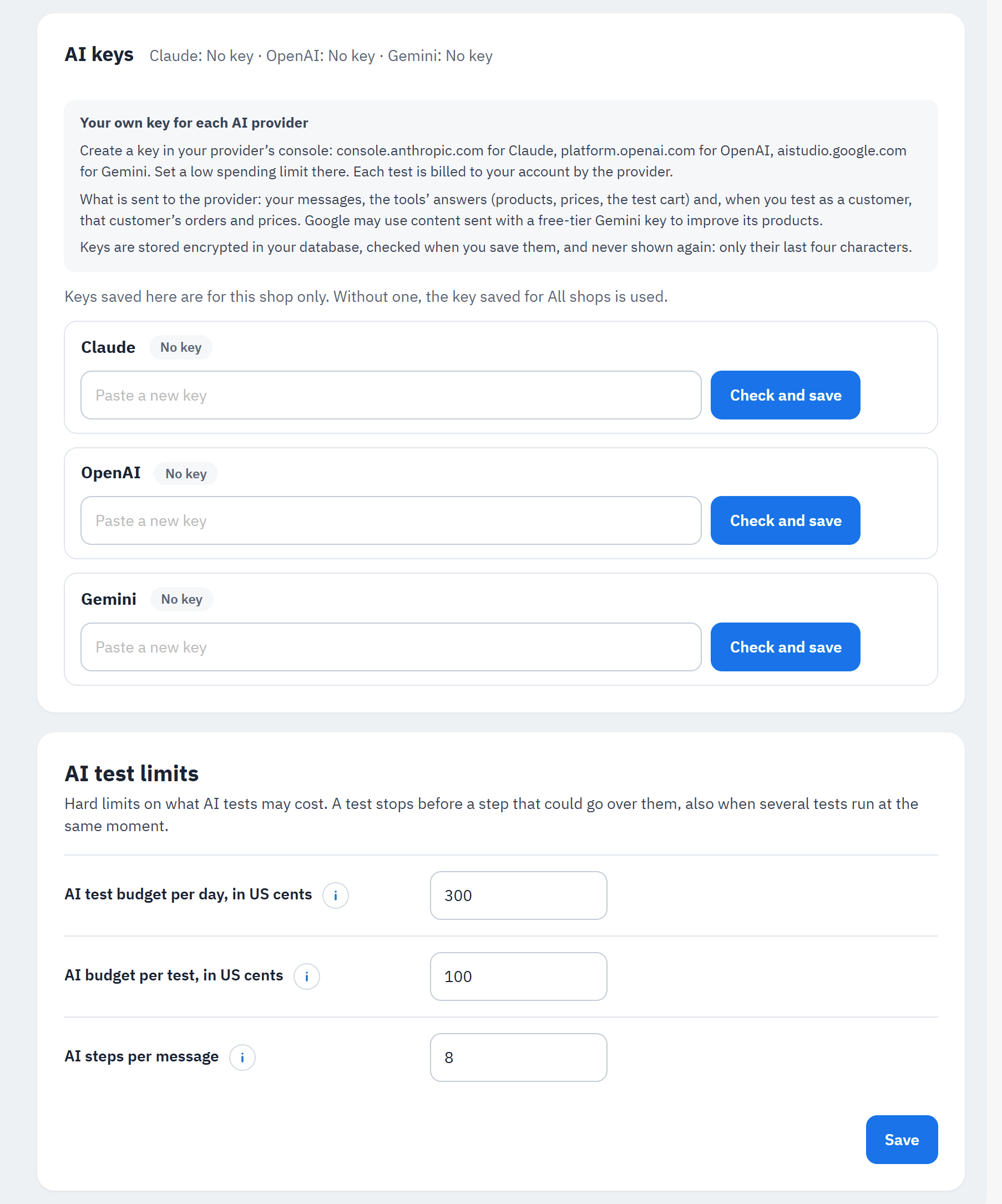
- AI keys: create a key in the provider's console (the Anthropic Console for Claude, the OpenAI Platform for OpenAI, Google AI Studio for Gemini) and set a low spending limit there. Paste it in the provider's field.
- Check and save: the module checks the key with the provider (no cost) before saving it. Check checks a saved key again; Remove deletes it. Keys are stored encrypted in your database and never shown again: only "Key saved · ends in …abcd · added <date>".
- AI test limits (per shop):
| Setting | Default | Range |
|---|---|---|
| AI test budget per day, in US cents | 300 (3 US$) | 0 to 10000; at 0 only the demo run works |
| AI budget per test, in US cents | 100 (1 US$) | 5 to 2000 |
| AI steps per message | 8 | 2 to 20; when reached, write again to let it go on |
Each test is billed to your account by the provider, not by the module. Costs shown are estimates from the providers' list prices ("Estimates from the list prices of …; your AI provider's bill is what counts."). Before each AI call the module adds the most that call could cost and refuses it when that would pass a limit, also when several tests run at the same moment. A single call can still cost a little more than its estimate, so keep a spending limit at the provider too.
Multistore. A key belongs to one shop or to All shops: "Keys saved here are for this shop only. Without one, the key saved for All shops is used." Only employees with access to every shop can save or remove the All shops key.
Permissions. Viewing the module lets you open the Test with an AI agent tab and read your earlier tests (Your earlier tests, the last 7 days). Running tests, saving keys and changing the limits need the edit permission of the module.
What is sent to the AI provider (only with Claude, OpenAI or Gemini, only to that provider): fixed instructions (your shop's name, the test's language and currency, today's date, rules such as "never invent prices"), the tools offered, your messages and your shop's tool answers (and, when you test as a customer, that customer's orders, prices and saved address names). Secrets in the answers are masked. The demo run sends nothing. Google may use content sent with a free-tier Gemini key to improve its products. Mention AI tests in your privacy policy if you test as real customers.
Diagnostics, the audit and the search index
Diagnostics answers one question, "Can AI assistants use my tools?", and says how to fix what stops them.
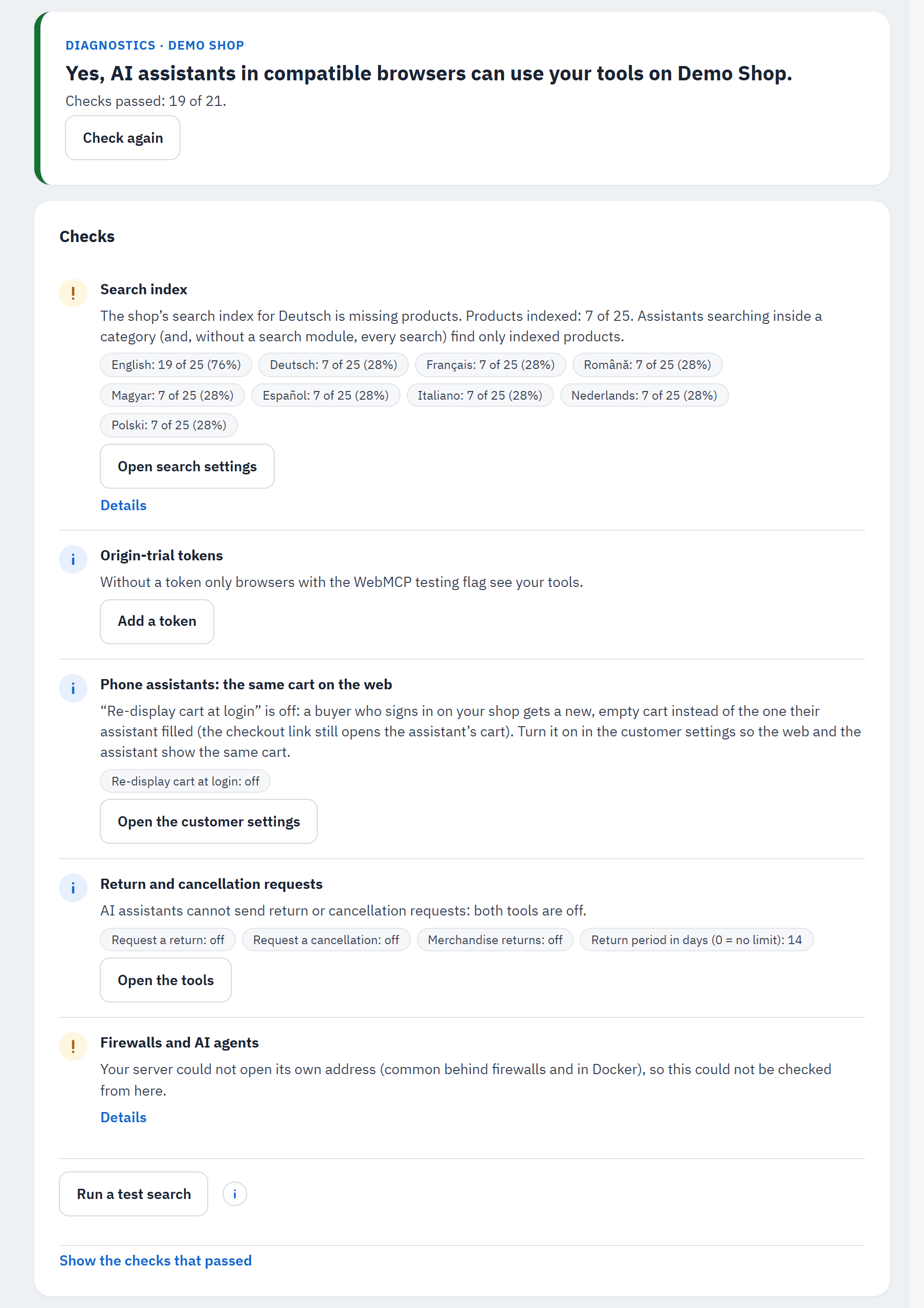
- The answer: "Yes, AI assistants in compatible browsers can use your tools on …" with "Checks passed: N of M.", and Check again.
- The checks that need attention come first, each with its state, what was found and the details.
- The fix: a button to the PrestaShop page where it is fixed, or to the module's own setting.
- Run a test search: searches once for the first word of your newest product through the engine that answers your shop's searches and shows how many products it found and how long it took (it counts as one search in your shop's search statistics).
- Show the checks that passed opens the others.
Every check, what it means and how to fix it is in Troubleshooting; the checks Ratings and reviews and Delivery to your main countries belong to Ratings and reviews and Shipping estimate, the checks AI agent directories and Forms for AI agents to AI agent directories and llms.txt and Form tools on your pages, the checks Verified AI agents and Firewalls and AI agents to Verified AI agents, and Return and cancellation requests to Return and cancellation requests. When the module is not fully connected to your storefront pages, the card also offers Repair the hooks: it connects the module again, for every shop, as the installation does, and is safe to run more than once.
Product feed for ChatGPT. This module answers AI agents live and sends no product feed. To list your catalogue in ChatGPT shopping with a product feed, use the separate module "OpenAI / ChatGPT Ads" (openaiads). The last check, Product feed for ChatGPT, says whether that module handles your feed (with how it is delivered and its last run), what to set when it is installed but not set up (Open its settings), or names it when it is not installed. Each module works on its own.
The search index
PrestaShop keeps a list of the words of each product, per shop and per language: the search index. A product missing from it is not found by PrestaShop's own search. Assistants searching inside a category always use that index, and, when no search module answers your shop's searches, every assistant search does.
The Search index check compares the products a shopper can find through search with the products the index covers, for each language: it needs attention when one language is below 90 % (as in the figure above: the demo shop's catalogue was imported in English only). The check never fails: search still works for the indexed products. Shop search engine says which module answers your shop's searches.
To fix it, choose Open search settings (Shop Parameters › Search): Add missing products to the index adds only the missing products (quick; use it first and after imports); Re-build the entire index indexes every product again and can take several minutes on a large catalogue (run it at a quiet time). The module never rebuilds the index itself.
Can AI agents shop here? (the audit)
The card Can AI agents shop here? checks the whole shop, not only the module: whether AI agents can find your products, fill the cart and check out, and for every problem what it saw and how to fix it. AI agents here are AI search crawlers (OAI-SearchBot, Claude-SearchBot, PerplexityBot, Googlebot), assistants that open a page because a person asked (ChatGPT-User, Claude-User and others), agent browsers that browse like a person, and training crawlers (reported as information only: blocking them is your choice and does not stop shopping agents).
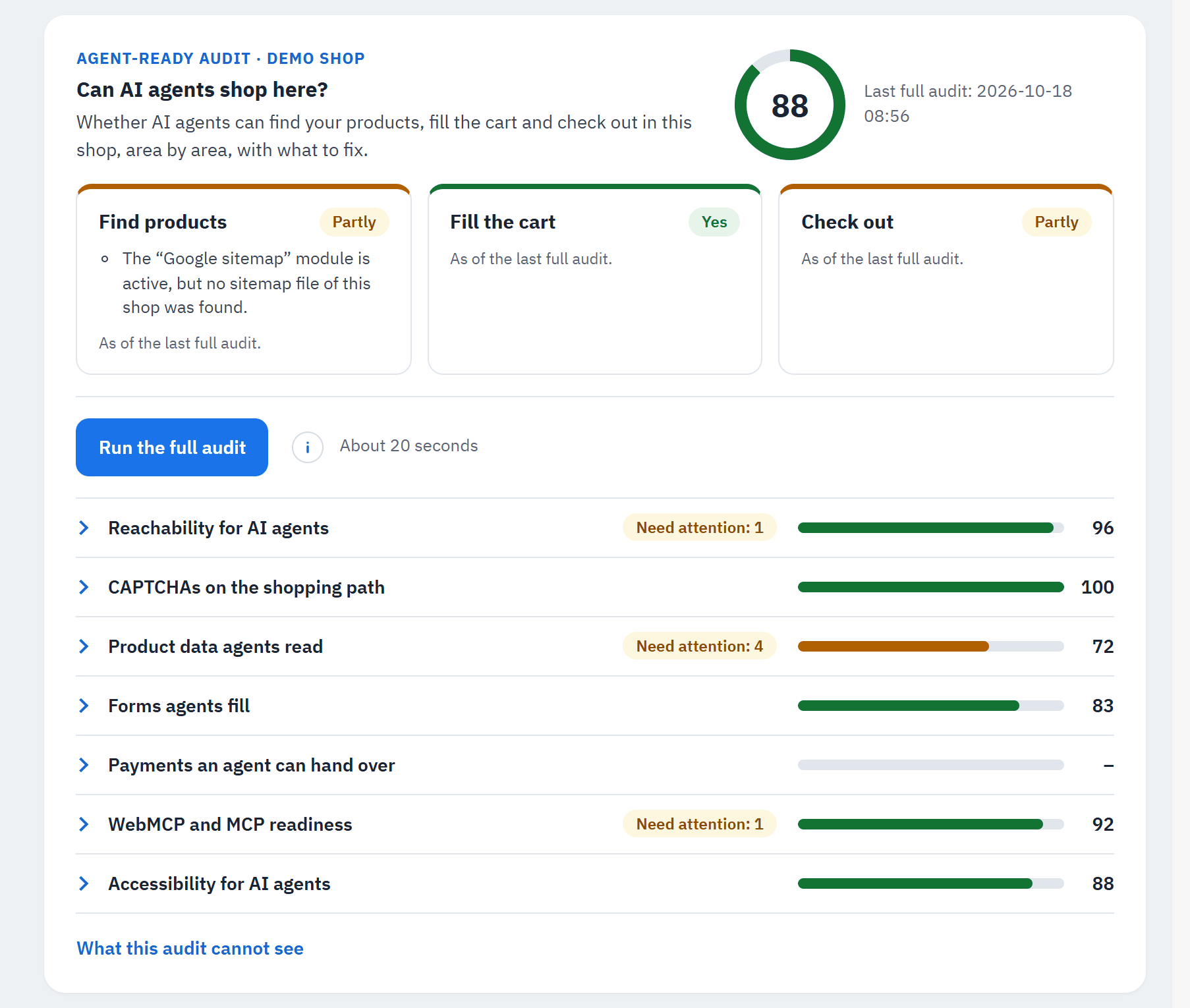
- The score (0 to 100) of the last full audit, with its date.
- The three answers, Find products, Fill the cart and Check out, each Yes, Partly or No with up to two reasons.
- Run the full audit ("About 20 seconds"): "Opens about 20 pages of your shop from your server, one after the other, as AI assistants would. Nothing is changed or ordered."
- Seven areas, each with a score bar and "Need attention: N": Reachability for AI agents, CAPTCHAs on the shopping path, Product data agents read, Forms agents fill, Payments an agent can hand over, WebMCP and MCP readiness, Accessibility for AI agents.
- What this audit cannot see.
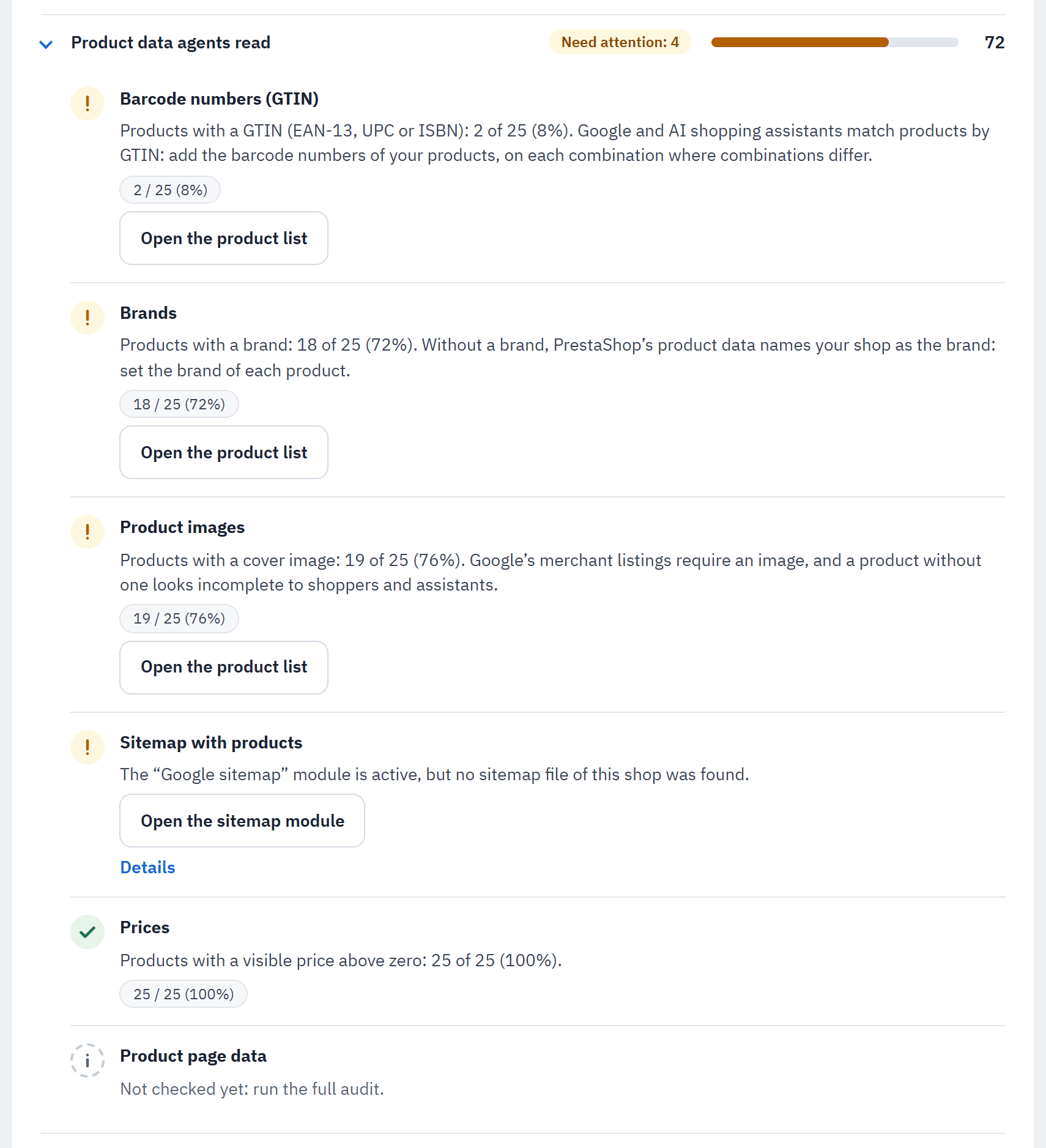
- The area's score.
- Each finding: its state, a one-sentence answer and its facts.
- A fix button where the fix is in PrestaShop (here Open the product list), and Details with the evidence.
Fast checks run each time you open Diagnostics, without any request to your storefront (robots.txt, .htaccess,
modules, catalogue, sitemap, payment modules). The full audit adds the checks that need your storefront's pages: 6
pages read as a shopper's assistant would, robots.txt as your shop serves it, and your home and product pages
requested with the user agents of AI agents; the same pages are then read for Accessibility for AI agents. It only reads (GET requests, one at a time), never signs in, never
submits a form and never opens the payment step; it requests only your shop's own addresses. Its page views may be
counted as visits by statistics modules.
When your server cannot open its own storefront (behind some firewalls), the card offers Check from this browser: your browser opens the same pages and sends them to the back office to check. For what real bots get from outside, through your CDN or firewall, PrestaChamps support can run a standalone version of the audit from another computer.
The robots.txt button. PrestaShop's own robots.txt keeps every robot out of the cart, login and checkout pages, so the assistants that follow robots.txt (Claude-User, MistralAI-User) cannot open them for a shopper. Under Assistants fetching pages for a shopper the module offers Let shopping assistants open cart and checkout pages: it shows the exact lines first, then Write robots.txt has PrestaShop write the file again (as its own Generate robots.txt button does) with a group for these assistants. Hand edits of robots.txt are lost when PrestaShop writes it: the preview lists them and asks you to confirm. Remove the group undoes it. robots.txt is one file for every shop of the installation; uninstalling the module leaves it as it is.
Phone wallets. In Payments an agent can hand over, the row Phone wallets (Apple Pay, Google Pay) says through which payment module each wallet is likely ("Available through …"). When the payment module's settings do not tell, it says "Not confirmed" with Check Apple Pay and Google Pay in the payment module’s settings; when no module offers them, "Not found" with a button to switch them on in the payment module or to add one. It is information only: the phone and its browser decide at the moment of paying. With Mention Apple Pay and Google Pay on, phone assistants then tell the buyer that a wallet is likely (see The checkout link).
llms.txt. Under Reachability for AI agents, the row llms.txt says whether the shop publishes one. The module publishes it while Describe this shop for AI agent directories is on (see AI agent directories and llms.txt).
Accessibility for AI agents
Agent browsers read a page through the names and roles of its links, buttons and fields, as screen readers do. A button that is only an icon, or a field without a label, is one they cannot name, so they guess or give up. The seventh area of the audit, Accessibility for AI agents, reads the storefront pages of the full audit with the rules of the "Agentic browsing" accessibility audit of Chrome Lighthouse, in four findings:
- Links and buttons AI agents cannot name: links, buttons and image buttons without words or an
aria-label. - Fields and choices AI agents cannot name: fields, drop-down lists and options without a label, and invalid autocomplete values.
- ARIA attributes and roles that mislead AI agents: misspelt or invented ARIA names and roles, roles an element cannot take, missing states.
- Page title, hidden page, tab order and dialogs: a page without a title, a page hidden from agents (often left by a pop-up script), a positive tab order, dialogs without a name.
An element found on several pages (header, footer) counts once. A finding needs attention for 1 or 2 elements, or for points Chrome Lighthouse lists for review only (such as repeated ids), and fails from 3. Its Details give, for each rule, how many elements fail, how to fix them and up to three examples with their page and the id or class of the part around them: that part usually names the module or theme template that prints the element. Fix it in that template; a copy in your theme's modules folder keeps the change through module updates. The module changes nothing in your theme.
This browser and the storefront reports
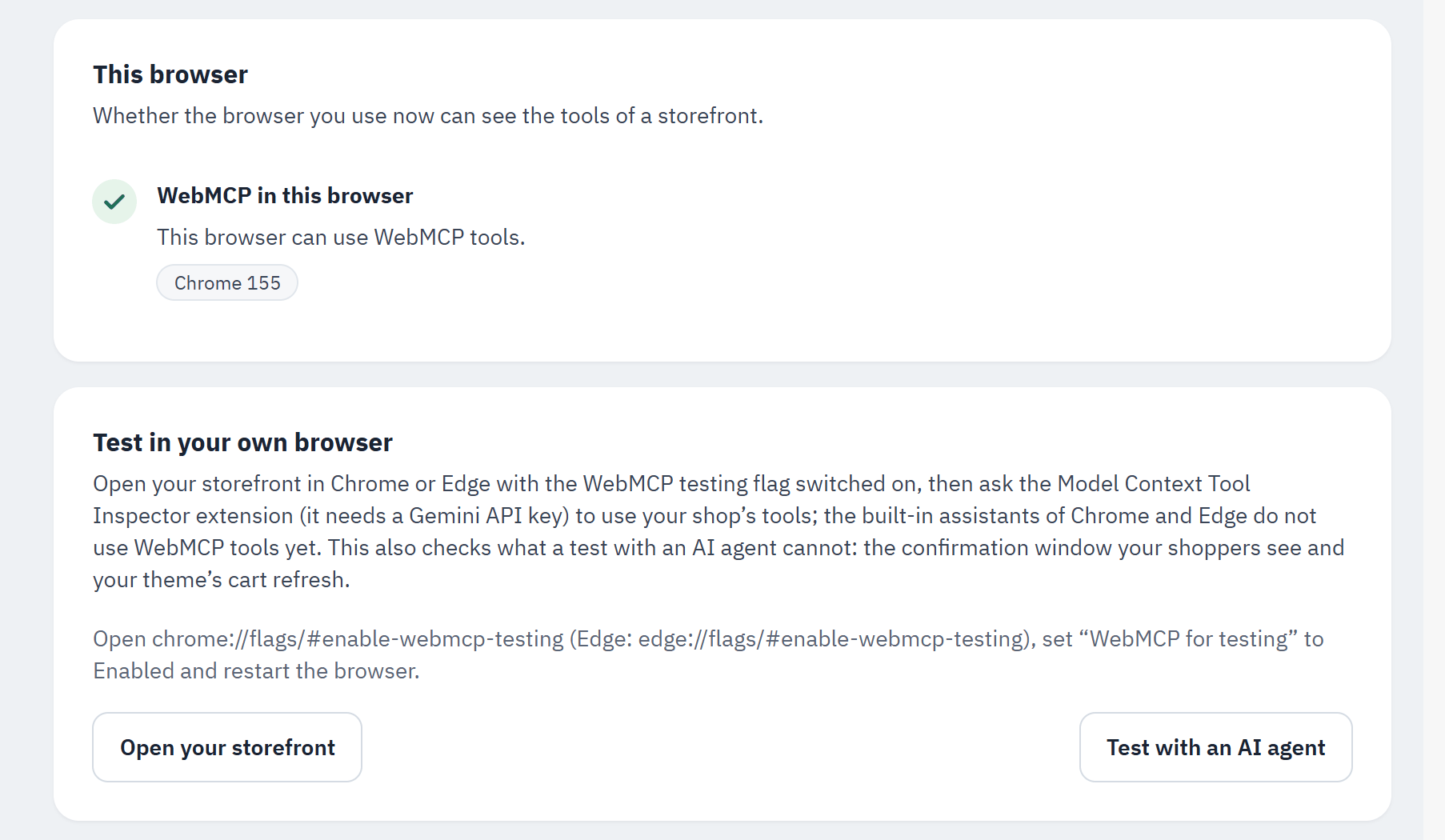
- This browser: whether the browser you use now can see the tools of a storefront ("WebMCP in this browser").
- Test in your own browser: open your storefront in Chrome or Edge with the WebMCP testing flag switched on, and ask the Model Context Tool Inspector extension (it needs a Gemini API key) to use your shop's tools. This also checks what a test with an AI agent cannot: the confirmation window your shoppers see and your theme's cart refresh. Open your storefront, Test with an AI agent (the tab of the Test page).
Further down, folded: Storefront reports (7 days) (with Diagnostic mode on: which browsers opened your pages and which tools they registered), Errors by tool (7 days) with their reasons, Requests refused before any tool ran, Refused tools of other modules and Origin-trial tokens.
Try a tool and logs
Try a tool
Try a tool, the first tab of the module's Test page, runs one tool the way an AI assistant does on your storefront, as a visitor who is not signed in. Test runs are not counted in the statistics or the log. The other tab, Test with an AI agent, is described in Test with an AI agent.
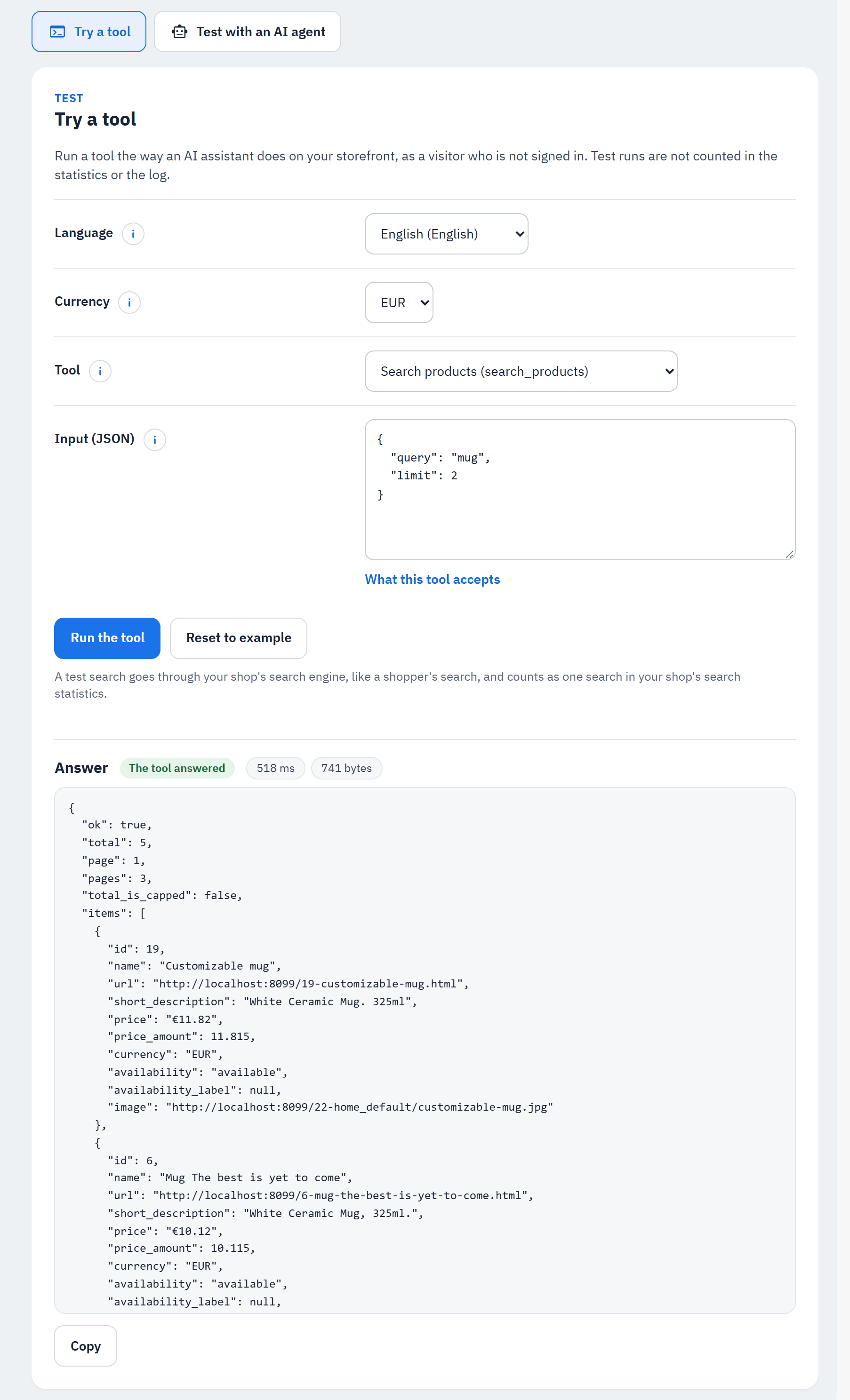
- Shop, Language, Currency and Tool.
- Input (JSON): what the assistant sends to the tool. It starts with an example; Reset to example brings it back; What this tool accepts lists every field the tool knows.
- Run the tool.
- The result: its state and how long it took.
- Answer: what the assistant gets, with Copy.
Tools for the cart and for orders need a shopper in a browser, so they do not run here: "This tool needs a shopper" gives you a request instead: open a page of your shop as a shopper, then paste the request in the browser (Copy the request). A test search goes through your shop's search engine like a shopper's.
Logs
With Keep a log of tool calls on (Settings › Advanced settings › Logging), Logs lists each call an assistant made: when, which tool, the result and how long it took. What shoppers asked or saw is never stored.
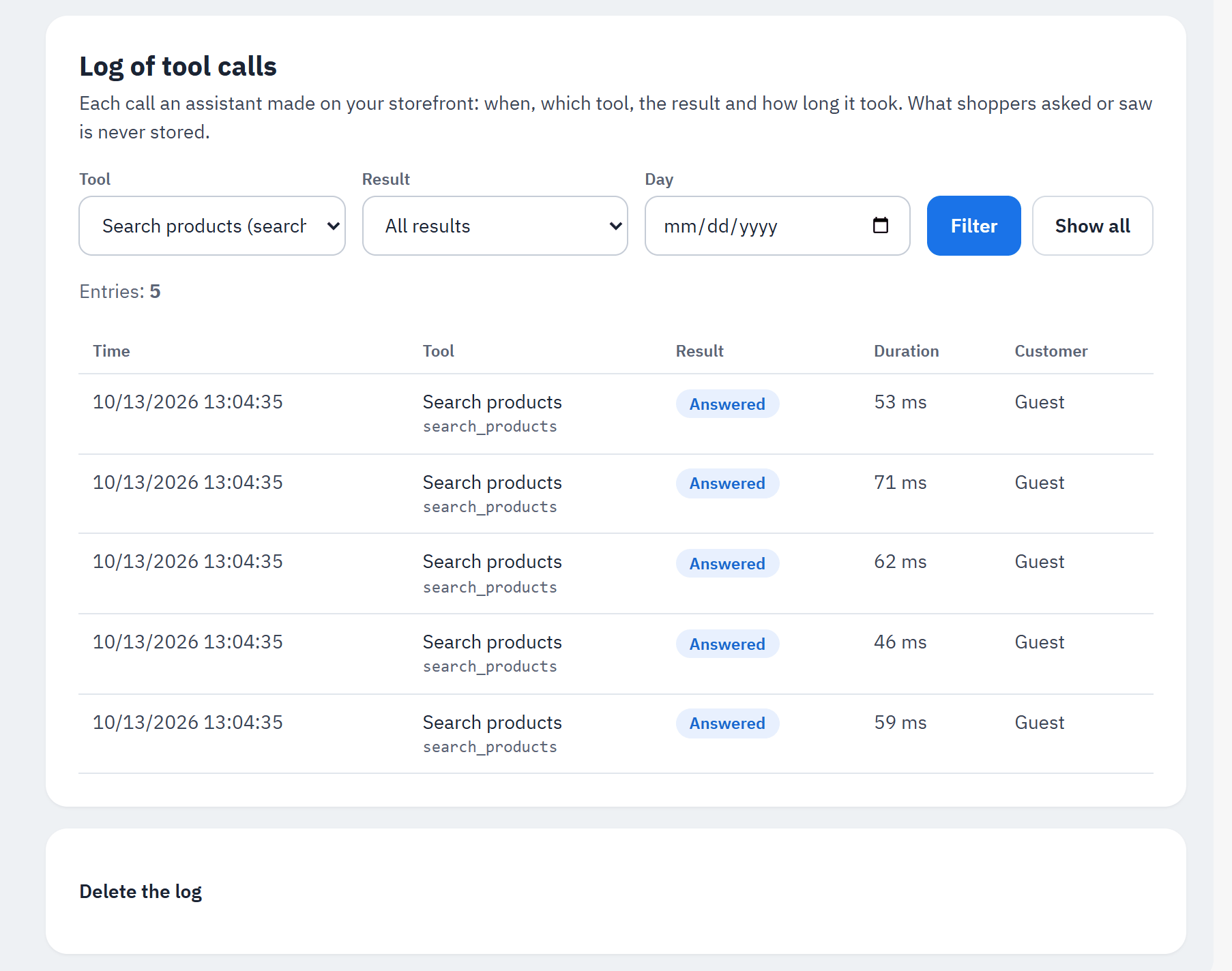
- Tool: one tool, or all.
- Result: one result, or all.
- Day: one day. Choose Filter; Show all clears the filters.
- The entries, newest first: time, tool, result, duration, customer number (or "Guest"); Newer entries / Older entries page through them.
- Delete the log: deletes every entry of the shops in this view, whatever the filters ("This cannot be undone"). Old entries are already deleted every day after Days to keep the log.