













Settings
Settings holds the storefront settings. Three cards are always open: General, Product answers and Cart and orders. The settings most shops never change wait in the closed group Advanced settings. Every field has an ⓘ that opens its help text: what it does, its default and what changes.
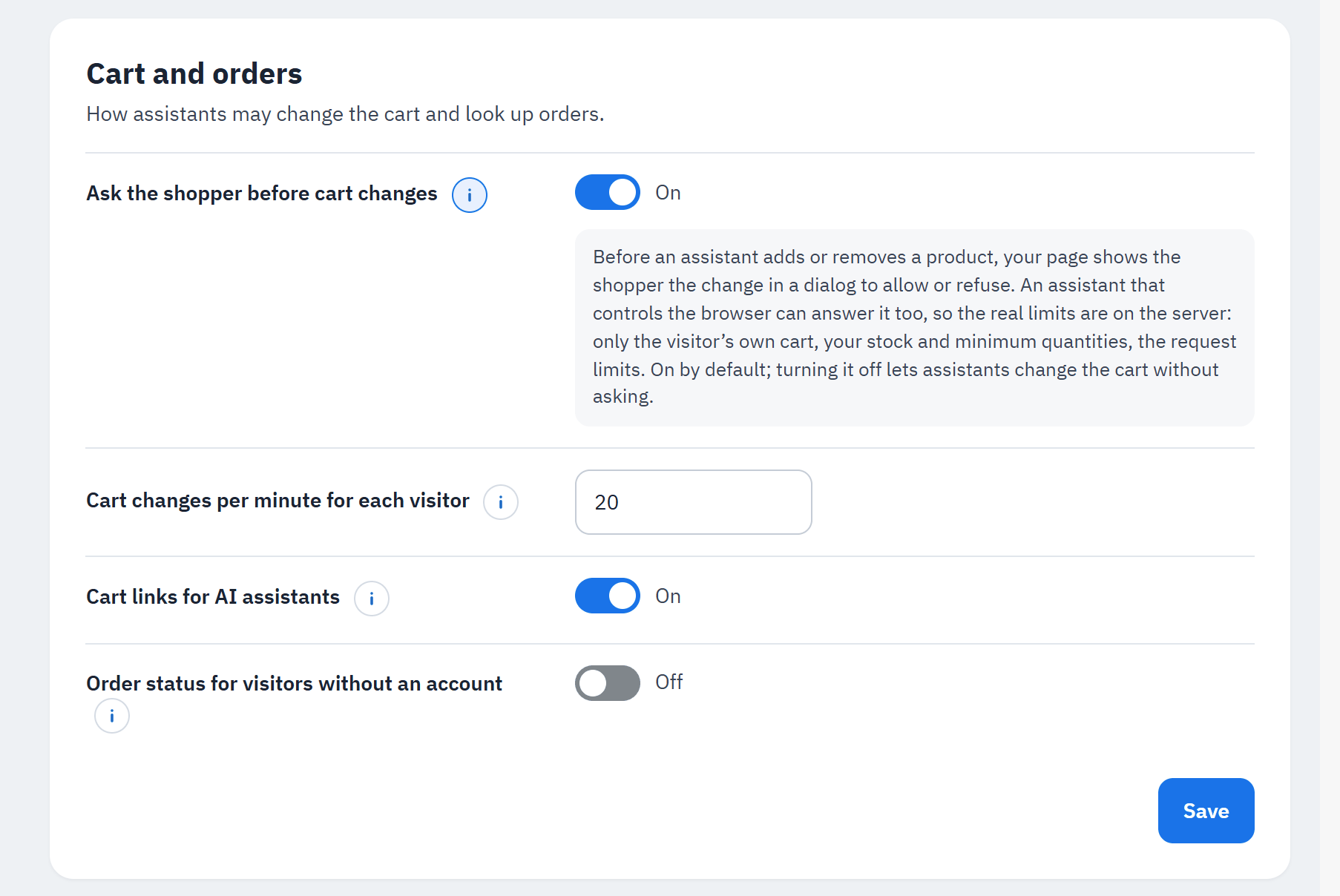
- The ⓘ of a field.
- Its help text.
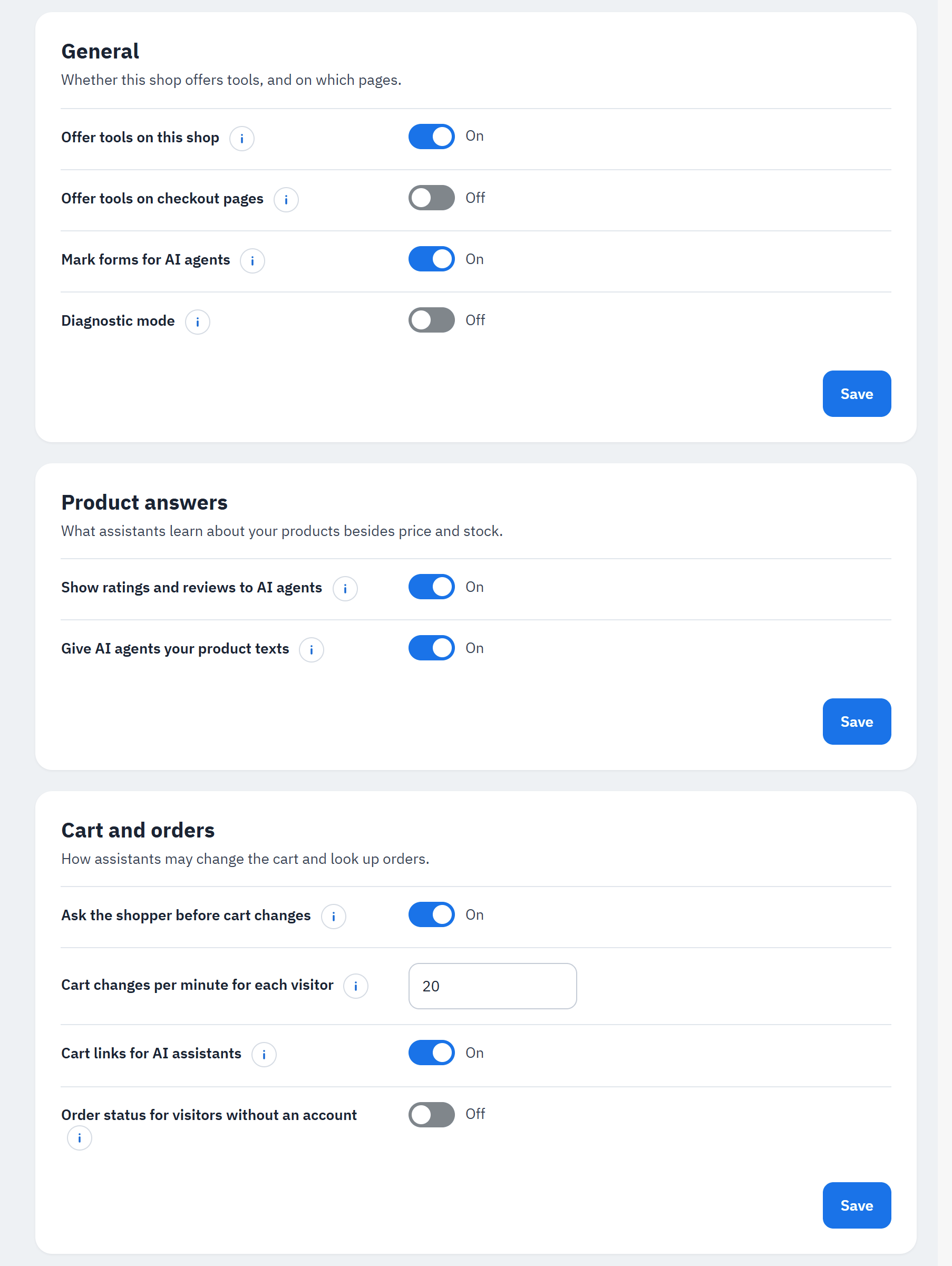
General ("Whether this shop offers tools, and on which pages.")
- Offer tools on this shop (on): lets AI assistants in compatible browsers use the tools you switched on. Turn it off to stop offering every tool at once; your choices are kept.
- Offer tools on checkout pages (off): the cart and checkout pages offer no tool, so nothing interferes while the shopper pays. Turn it on to let assistants read products and the cart there too.
- Mark forms for AI agents (on): in browsers with WebMCP, an assistant can open your search results and fill in your contact form, newsletter sign-up and a product's options and quantity; the shopper always presses the button. Every other form is marked as not for agents. Browsers without WebMCP are not touched. See Form tools on your pages.
- Diagnostic mode (off): storefront pages send one small report each, so Diagnostics can show which browsers can use your tools. Turn it off when you are done.
Product answers ("What assistants learn about your products besides price and stock.")
- Show ratings and reviews to AI agents (on): product searches include each product's average rating and number of reviews, and product details up to 3 recent published reviews. See Ratings and reviews.
- Give AI agents your product texts (on): product details include the text you wrote for AI agents, in the shopper's language or else your default language. Shoppers never see it. See Texts for AI agents.
Cart and orders ("How assistants may change the cart and look up orders."). Shown for the tools you switched on.
- Ask the shopper before cart changes (on): before an assistant adds or removes a product, your page shows the shopper the change in a window to allow or refuse (see the figure below). An assistant that controls the browser can answer it too, so the real limits are on the server: only the visitor's own cart, your stock and minimum quantities, the request limits. Turning it off lets assistants change the cart without asking.
- Cart changes per minute for each visitor (20, from 5 to 60).
- Cart links for AI assistants (on): an assistant can give the shopper a link that puts the products it found in the shopper's cart. See Cart links for AI assistants.
- Order status for visitors without an account (off): visitors without an account can look up an order with its reference and the e-mail used for it, as on your guest order tracking page.
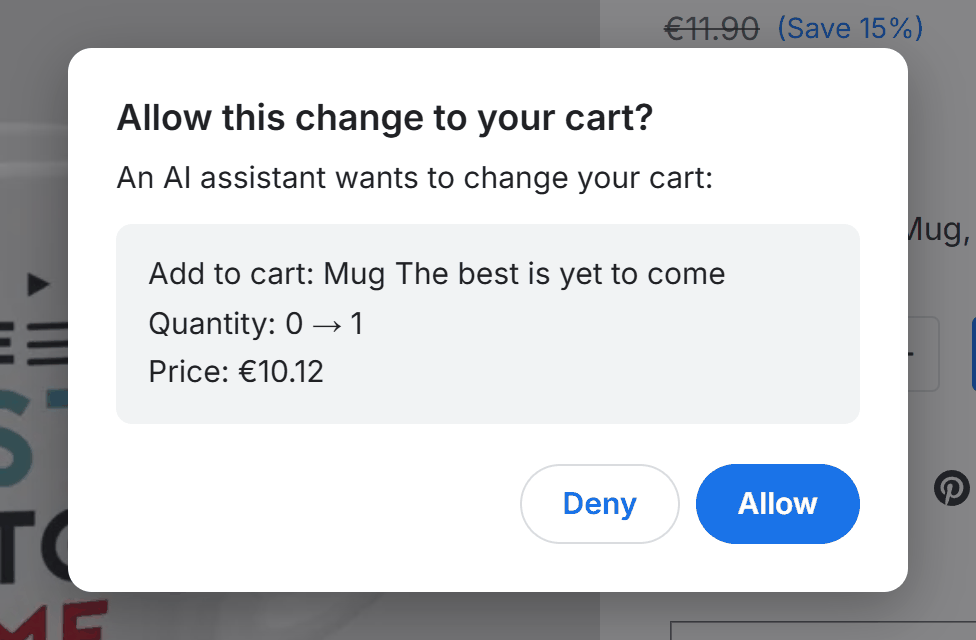
The window your shoppers see when an assistant wants to change their cart:
- "Allow this change to your cart?"
- The change: product, quantity before and after, price. For a discount code: the code, the discount, the code it replaces and the cart total before and after (see Discount codes).
- Deny and Allow. Nothing changes until the shopper (or the assistant acting in their browser) allows it.

- Advanced settings ("Request limits, logging and statistics, browser access and AI agent directories. The defaults suit most shops."): click it to open its four cards, Limits, Logging, Browser access and AI agent directories.
The group opens by itself when you save one of its cards, or when a link of the module (for example a Diagnostics fix) leads to one of them.
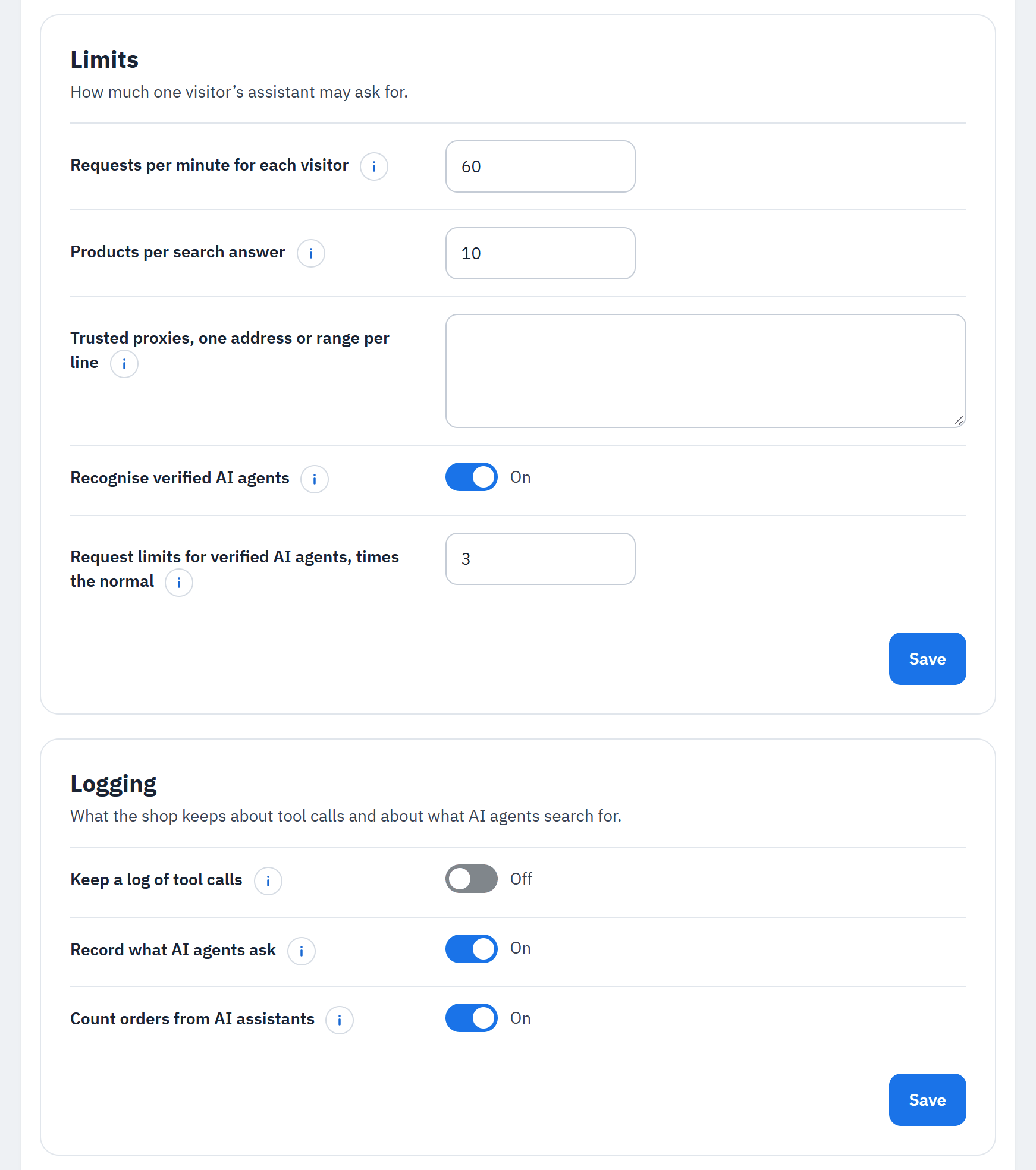
Limits ("How much one visitor's assistant may ask for.")
- Requests per minute for each visitor (60, from 10 to 300): further calls are refused until the minute is over, which protects your shop from runaway assistants.
- Products per search answer (10, from 1 to 20): assistants can ask for the next page; fewer products per answer keeps each answer short.
- Trusted proxies, one address or range per line (empty): only when your shop is behind a CDN or proxy, such as
Cloudflare. Paste the address ranges it publishes, up to 50 lines (for example
173.245.48.0/20). Each visitor then gets their own request limits instead of sharing those of the CDN. The list applies to every shop. Leave it empty when your shop is not behind a CDN. - Recognise verified AI agents (on): AI agents that sign their requests get higher request limits and are named in Diagnostics, the log and your orders per AI channel. See Verified AI agents.
- Request limits for verified AI agents, times the normal (3, from 1 to 10): for searching and reading only; cart changes and order lookups keep their normal limits.
Logging ("What the shop keeps about tool calls and about what AI agents search for.")
- Keep a log of tool calls (off): stores one line per call: tool, result, duration, shop, customer number and a scrambled IP address, never what was asked or answered. See Logs. Days to keep the log (30, from 1 to 365): older lines are deleted automatically, once a day.
- Record what AI agents ask (on): keeps the words AI agents search for in your shop and how many results they got, for the page AI insights. Only the words, never who asked; kept 90 days.
- Count orders from AI assistants (on): notes which AI channel brought each cart, so AI insights shows orders and revenue per channel. No customer, address or browser details are stored.
Both are explained in AI insights.
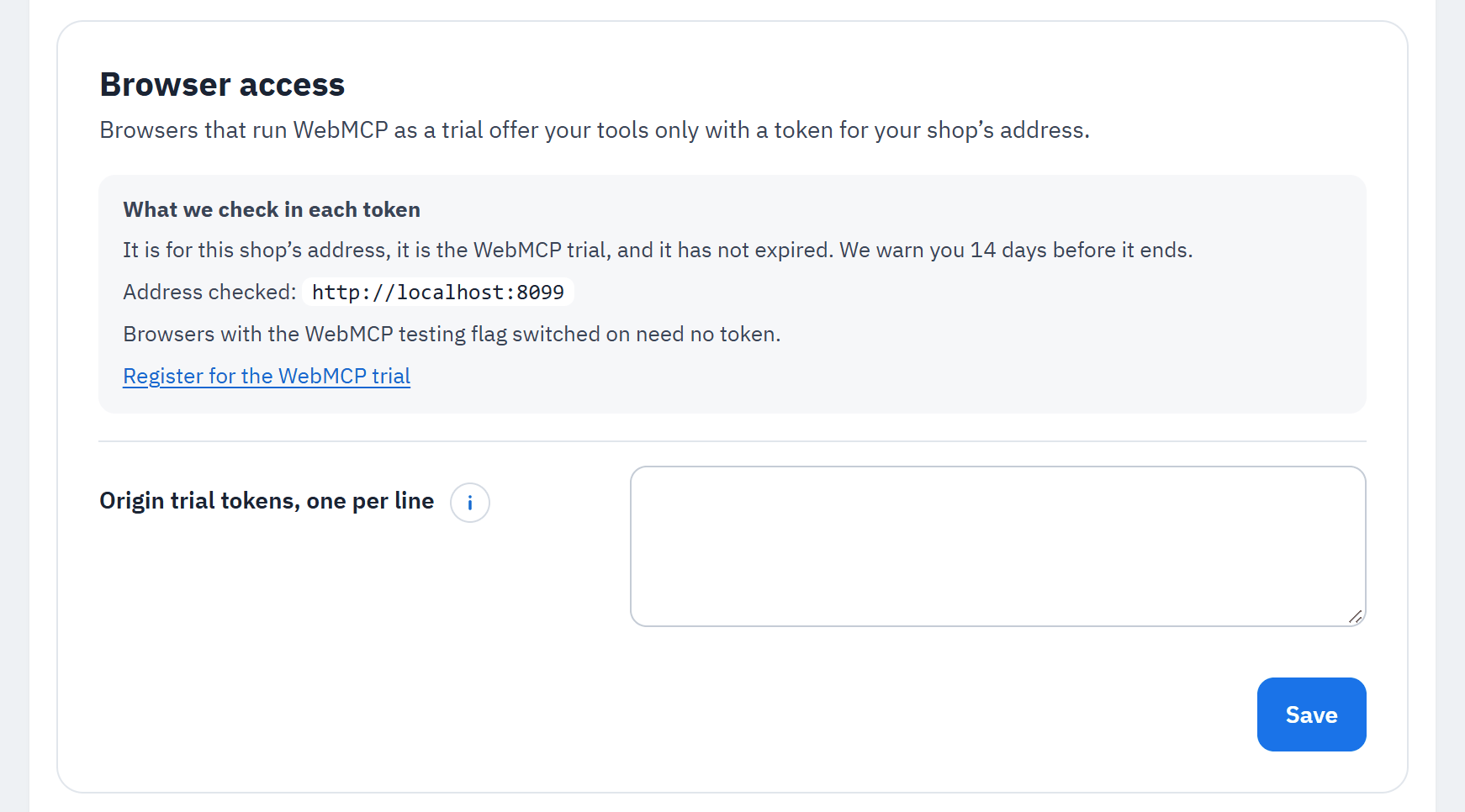
Browser access ("Browsers that run WebMCP as a trial offer your tools only with a token for your shop's address.")
- What we check in each token: that it is for this shop's address, that it is the WebMCP trial and that it has not expired. The module warns you 14 days before a token ends. Register for the WebMCP trial opens the trial's page.
- Origin trial tokens, one per line: up to 5 tokens. Browsers with the WebMCP testing flag switched on need no token.
AI agent directories ("Directories that AI assistants search can list your shop and give agents a guide to shopping here.")
- Describe this shop for AI agent directories (on): publishes a description of your shop that AI agent directories and Chrome Lighthouse read, a guide that tells AI agents how to shop here, and llms.txt, a summary of the shop for AI tools. Only public facts: the shop's name, description, addresses, categories, pages, languages, currencies and tools. The card shows their addresses.
- Example requests, one per line (empty): what a buyer may ask an assistant when your shop is the right answer; 2 to 5 lines. Empty: the shop writes them from its main categories.
AI agent directories and llms.txt
AI agent directories are lists that AI assistants and agent tools search to find shops and services. While Describe this shop for AI agent directories is on (the default), each shop publishes four things:
- A description of the shop: its name, description, languages, currencies and, while phone assistants are on,
its MCP server with the server's address and tools. It follows the Agentic Resource Discovery format and also passes
the AI catalog check of Chrome Lighthouse. It answers at
/.well-known/ard.jsonand/.well-known/ai-catalog.jsonof your domain and at the module's own copy,pchwebmcp/ardunder the shop's address. One file per domain lists every shop of that domain. - A guide for AI agents: the shop's tools, its search, cart, contact and terms pages, and its
rules (the buyer pays on your own payment page), at
pchwebmcp/skills/how-to-shopunder the shop's address. - agents.md at the shop's address (
agents.md): the shop's rules for AI agents, in short: what the tools do, what needs the shopper's confirmation, how to build a cart link, and where the guide, llms.txt and the description are. robots.txt names it in a comment line next to theAgentmap:line. - llms.txt at the root of your domain (
/llms.txt): the shop's name, description, top categories and pages, with links to the guide, the description and the MCP server. An llms.txt file of your own at the root of the shop is served instead of the module's. For a shop in a sub-folder, llms.txt belongs to the shop at the root of the domain.
The card's box Where directories find your shop shows these addresses, agents.md as Rules for AI agents
(agents.md): with Open agents.md, and under it whether cart links are offered: "Cart links for AI assistants: on.
agents.md shows AI agents how to build them." (or "…: off. agents.md does not offer them."), with a link to
Cart and orders where you switch them (see Cart links for AI assistants). They hold only public facts, never the
module's exact version. Storefront pages point to the description in their head, and robots.txt gets an
Agentmap: line (and the comment line of agents.md) while every active shop of the installation publishes on one domain (one robots.txt serves every
domain). The module keeps that line in step by itself when you save the card and when the module is enabled,
disabled, upgraded or uninstalled; it changes only its own line, never yours.
Changing Offer tools on this shop, the origin-trial tokens, Describe this shop for AI agent directories, Mark forms for AI agents or Count orders from AI assistants and saving clears the shop's cache, as PrestaShop's Clear cache button does, so page-cache modules stop serving pages without the change. After other settings that storefront pages print, the card says: "Pages your page cache stored before this change keep the old tools until you clear the cache."
The Diagnostics check AI agent directories opens the description, the guide, both /.well-known/ addresses and
/llms.txt, and reads robots.txt. It passes with "AI agent directories and Chrome Lighthouse find the description of
your shop and the guide for AI agents."; every other answer and its fix is in Troubleshooting.
Cart links for AI assistants
Many assistants only write text: they cannot press "Add to cart" for the shopper. With Cart links for AI assistants on (Settings › Cart and orders, on by default), Get product details gives them a link to your shop that puts the product in the cart of the browser that opens it and shows the cart. An assistant can put several products in one link. The shopper checks out and pays as usual: the link never pays and never places an order.
- Every product of the link goes through the same checks as Add to cart: visibility, availability, combinations, minimal quantity and stock. A product your shop refuses is skipped and named on the cart page; products already in the cart stay.
- Link previews and robots open the cart without adding anything; the same link adds its products only once within 10 minutes; one address can open 30 links a minute.
- A cart filled by a link counts as a visit from an assistant's link in AI insights (see Orders from AI assistants).
Verified AI agents
Some AI agents now sign their requests, so a shop can check who sends them: today ChatGPT agent and Google-Agent. With Recognise verified AI agents on (Settings › Advanced settings › Limits, on by default), your shop checks each signature against the keys the agent's company publishes. Only the keys of the companies the module knows are ever fetched; they are kept for a while and refreshed in the background, never while a shopper waits.
A verified agent gets Request limits for verified AI agents, times the normal (3 by default) for searching and reading, so an agent shopping for many people at once is not slowed down; cart changes and order lookups keep their normal limits. The log names the agent, and carts it browses count as Verified AI agent browsing your shop. Only the agent's name is kept, no personal data. Verified means that the request comes from that company's agent; it raises read limits only.
The Diagnostics check Verified AI agents shows the signed requests of the past week, and Firewalls and AI agents opens your shop as ChatGPT and other agents would, to find a firewall or hosting rule that refuses them (see Troubleshooting). Checking signatures needs PHP's sodium extension, included in PHP since 7.2.
Ratings and reviews
Shoppers ask assistants which product is best rated. With Show ratings and reviews to AI agents on, the module reads the reviews of your review module and adds them to its product answers:
- Search products gives each product that has reviews its average rating and number of reviews;
- Get product details gives the rating, the average of each criterion your module rates (such as quality or value) and up to 3 recent reviews: title, text (shortened), rating, date and the reviewer's initials only.
Only the reviews your product page shows are read: approved ones when your module moderates reviews. The module reads PrestaShop's free Product Comments module and the reviews of IQIT's Warehouse theme. Review services that keep their reviews on their own servers (Trustpilot, Trusted Shops, Yotpo …), modules that collect reviews of the shop rather than of products, and some other review modules cannot be read: Diagnostics says so in the check Ratings and reviews, which names the module read.