












Ordering by phone
Your shop gets its own MCP server: an address that AI assistants such as Claude and ChatGPT can connect to. A buyer adds that address to their assistant once, then shops by talking to it:
- "Find a 16 A circuit breaker for my kitchen": the assistant searches your catalogue, with your prices and stock;
- "Put two of them in my cart": the assistant asks the buyer to connect their account of your shop once, then fills the same cart the buyer sees on your website;
- "I'd like to order": the assistant prepares the checkout (saved address, carrier, totals) and gives the buyer a link. The buyer opens it and pays on your shop's own payment page, with your usual payment modules.
The assistant never pays and never sees payment details.
Who can use it today
| Assistant | How buyers reach your shop | What we know (2026-10-11) |
|---|---|---|
| Claude | Now. The buyer adds your MCP address as a custom connector, with the Add to Claude button of your Order by phone page or by hand. | Every Claude plan can add custom connectors; the Free plan only one. On Team and Enterprise plans only an owner of the organisation adds them. Connectors are added on Claude's website or in the Claude desktop app and then also work in the Claude phone apps. |
| ChatGPT | Once your shop is listed in the ChatGPT directory. | Without a listing, a ChatGPT user can add an MCP address only in "developer mode": Business and Enterprise/Edu plans, on ChatGPT on the web, not in the phone app. Whether a listed app reaches every plan and country is decided by OpenAI. |
These facts come from Anthropic's and OpenAI's own help pages and change often. A listing in the ChatGPT directory is decided by OpenAI's review of your submission against its app developer guidelines; neither this module nor any previous review guarantees it.
What your shop needs
- HTTPS: ChatGPT and Claude connect only to shops with SSL switched on.
- Friendly URLs switched on (Shop Parameters › Traffic & SEO).
- Your web server passes addresses starting with
/.well-known/oauth-to PrestaShop, like other shop pages, and passes theAuthorizationheader to PHP. Most servers do both; Diagnostics checks them. - Offer tools on this shop (Settings) on, and the tools you want in Tools.
- Recommended: PrestaShop's Re-display cart at login (Shop Parameters › Customer Settings) on, so a buyer who signs in on your website sees the cart their assistant filled.
Switching it on
To switch it on:
- Open the module's Phone assistants section.
- Switch on Let buyers shop from AI assistants (MCP server) and save.
- In Tools, choose what buyers' assistants may do. For ordering by phone, switch on at least Add to cart, Remove from cart, Prepare checkout and Get checkout status.
- Check Diagnostics: the five "Phone assistants" lines should pass.
The section, from the top:
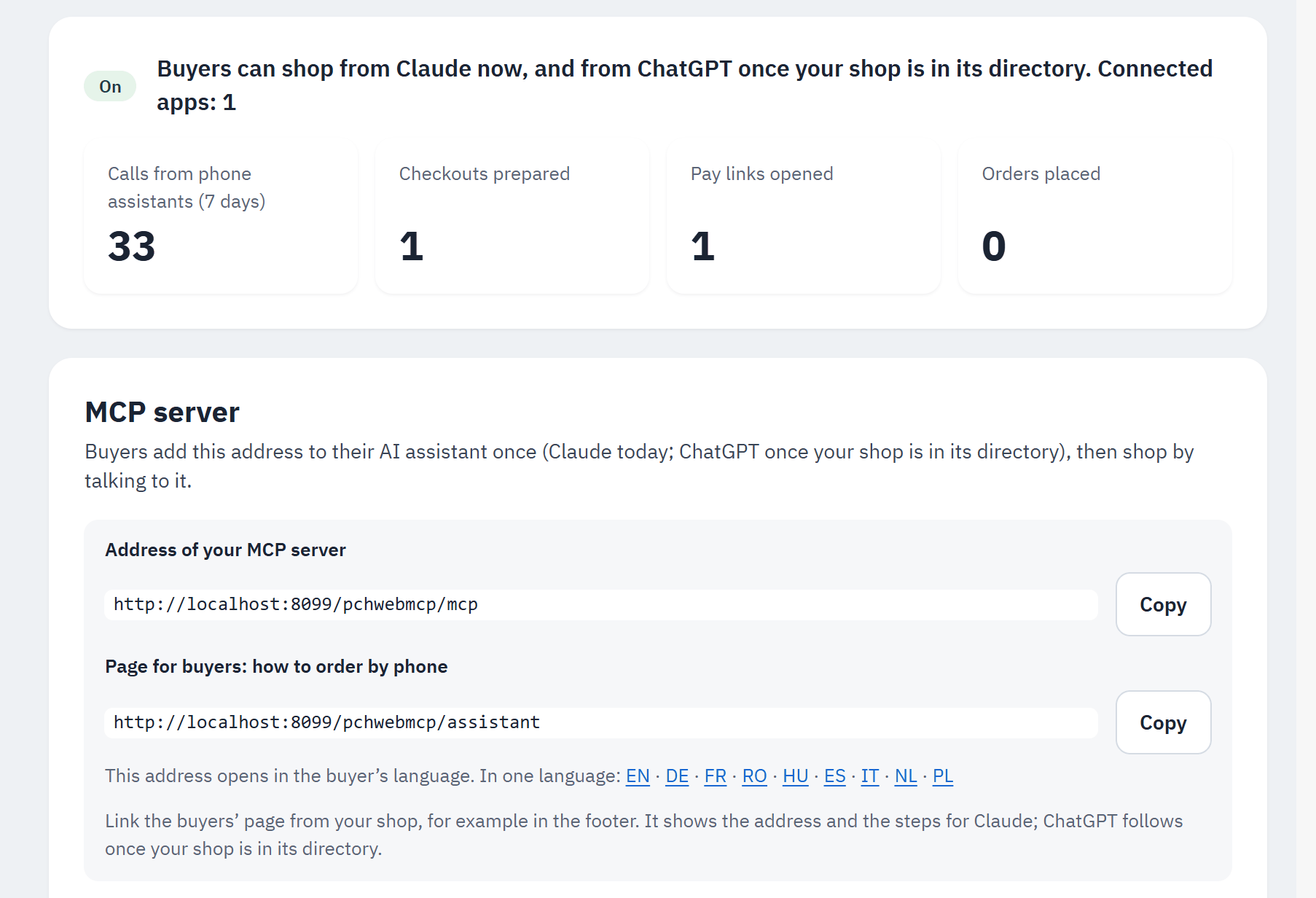
- The top line: "Phone assistants are off: buyers cannot shop from ChatGPT or Claude yet.", or "Buyers can shop from Claude now, and from ChatGPT once your shop is in its directory. Connected apps: N". When something is missing (HTTPS, friendly URLs, tools), it names the first problem.
- The figures: Calls from phone assistants (7 days), Checkouts prepared, Pay links opened, Orders placed.
- Address of your MCP server, with Copy: what buyers add to their assistant.
- Page for buyers: how to order by phone, with Copy: your Order by phone page.
- On a shop with several languages, the page in each language. The page opens in the buyer's language; the address of your MCP server never changes with the language.
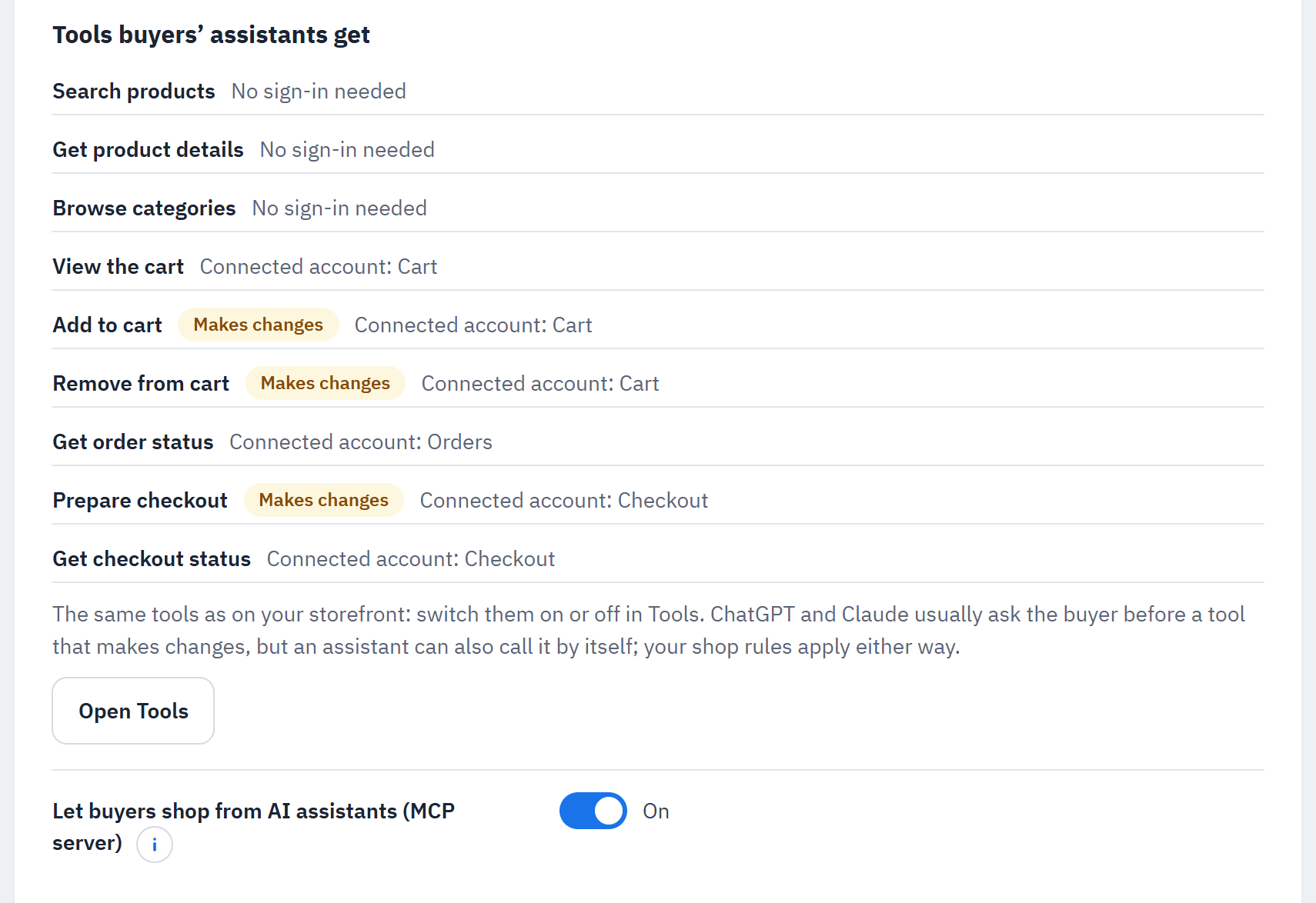
- Tools buyers' assistants get: the tools you switched on in Tools, marked Makes changes and Connected account: … or No sign-in needed.
- Let buyers shop from AI assistants (MCP server) (off by default): switch it on and choose Save.
Share with your buyers
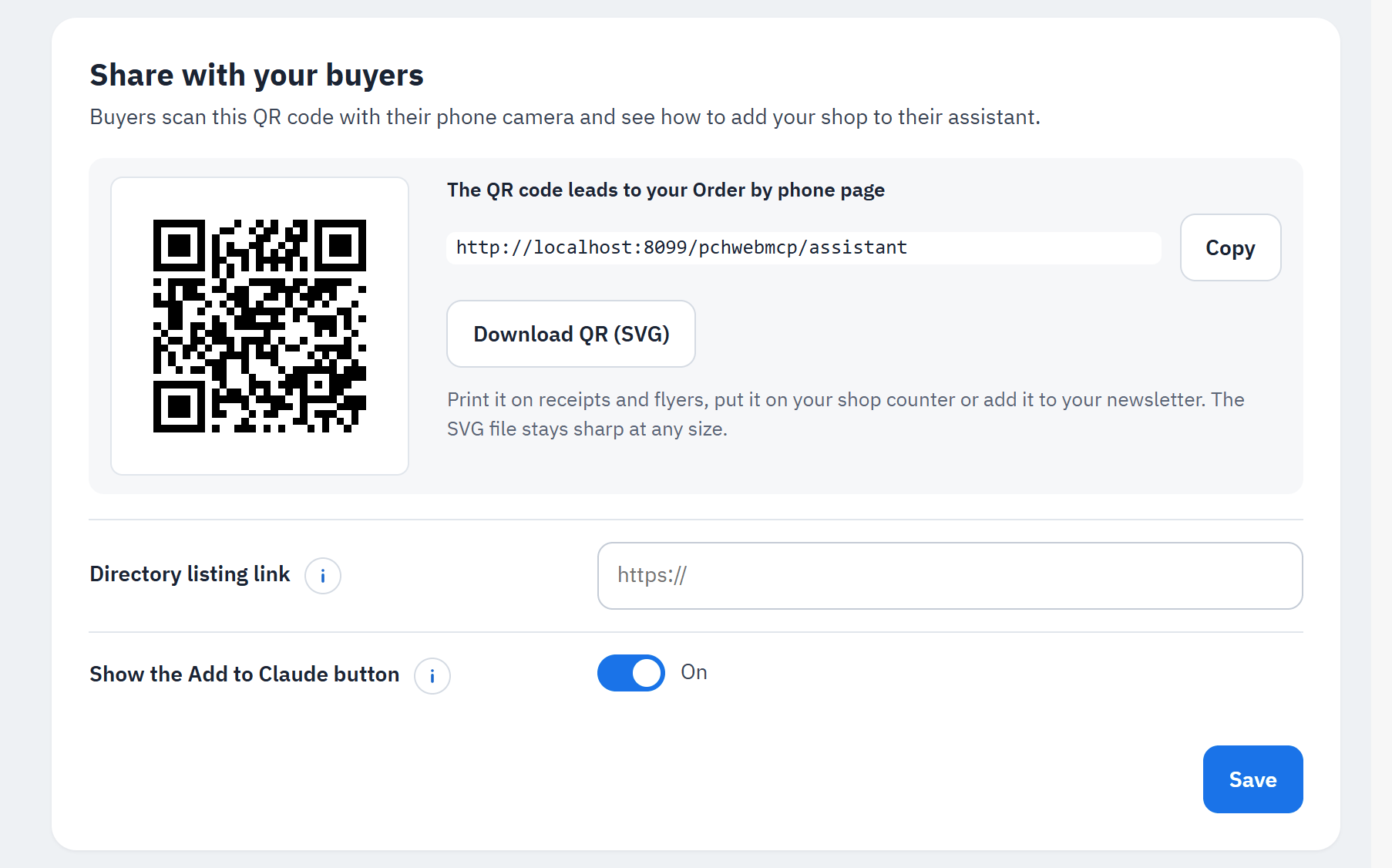
- The QR code of your Order by phone page (or of your directory listing, once you set its link).
- Link of the QR code.
- Download QR (SVG): a file that stays sharp at any size. Print it on receipts and flyers, put it on your shop counter or add it to your newsletter.
- Directory listing link: once your shop is listed in the Claude or ChatGPT directory, paste its page link here;
the QR code and the Order by phone page then lead straight to it. Only secure (
https) links of Claude's or ChatGPT's own websites are accepted. - Show the Add to Claude button (on): your Order by phone page shows a button that opens Claude's "Add custom connector" window with your shop's name and address filled in. Claude has not documented this link, so you can switch the button off if it ever stops working; the steps to add the address by hand stay on the page.
Good places for the link and the QR code: your shop's footer or menu ("Order by phone"), your contact page, your newsletter, order confirmation e-mails, social posts, receipts, packaging inserts and your shop counter.
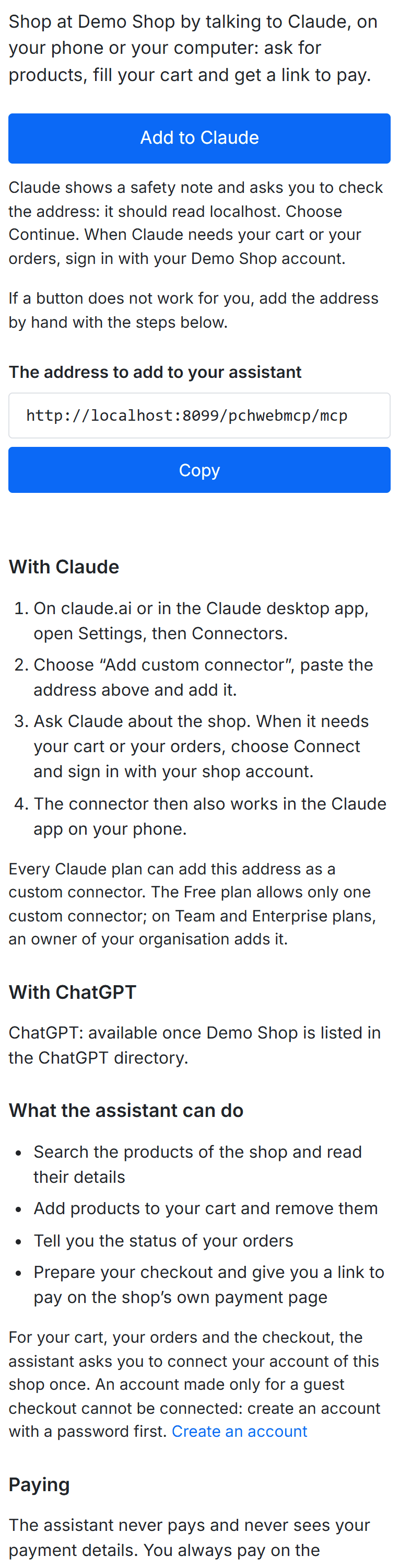
What buyers see. The Order by phone page shows, in the buyer's language:
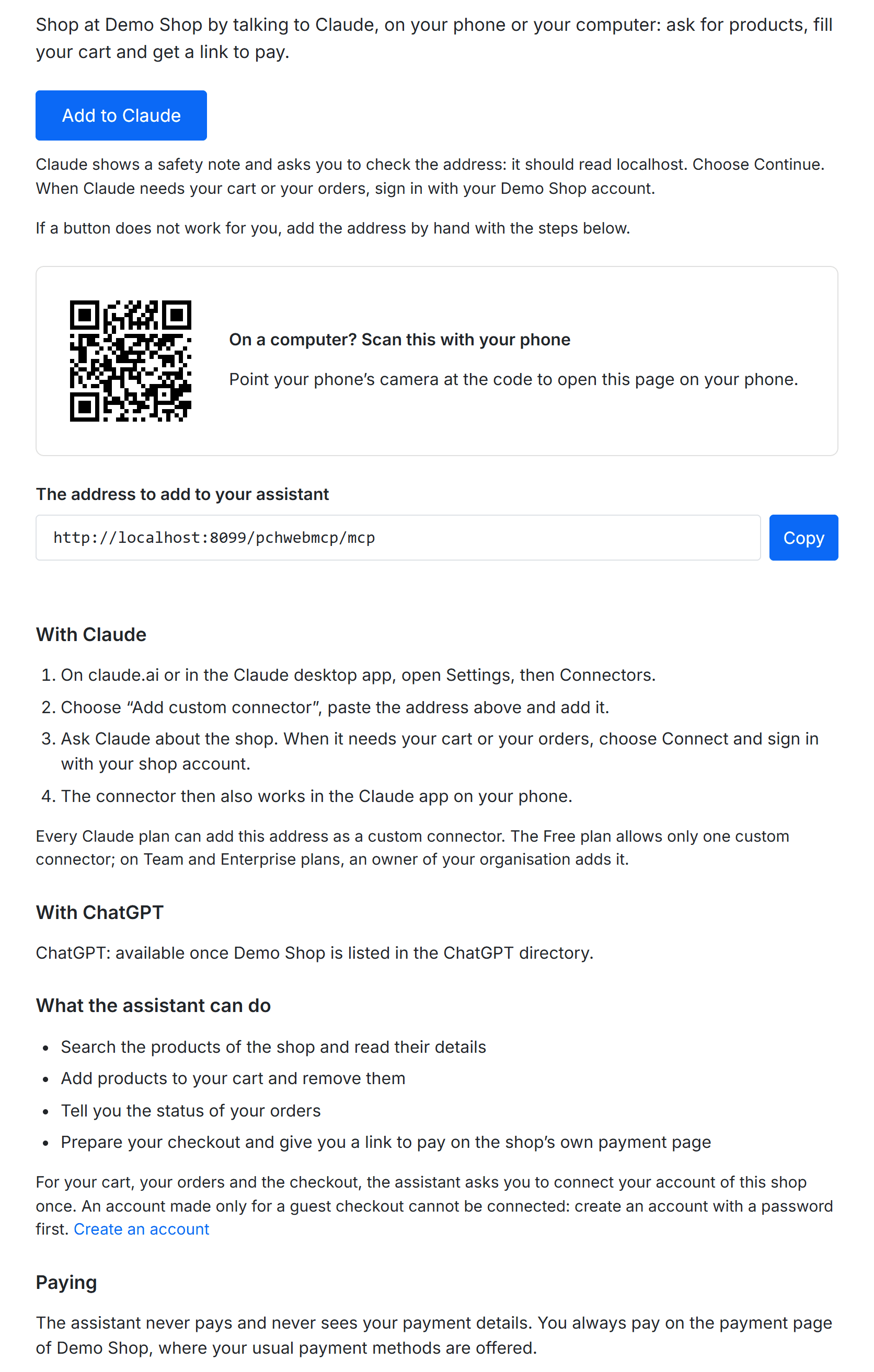
- Add to Claude (and Open in Claude / Open in ChatGPT once you set a listing link), with what to expect: Claude shows a safety note that the connector "was suggested by an external link" and asks to check the address.
- On a computer, the page's QR code: "On a computer? Scan this with your phone".
- The address to add to your assistant with Copy.
- The steps With Claude, and With ChatGPT ("ChatGPT: available once your shop is listed in the ChatGPT directory." until you set a ChatGPT listing link).
- What the assistant can do (from the tools you switched on), that a shop account is needed for the cart, the orders and the checkout, and Paying: "The assistant never pays and never sees your payment details. You always pay on the payment page of your shop, where your usual payment methods are offered."
The page exists only while phone assistants are on.
Getting listed in the ChatGPT or Claude directory
A directory listing is made by the shop owner (or an agency acting for it) on OpenAI's or Anthropic's developer site; the module cannot do it for you. What each one asked for on 2026-10-11:
- ChatGPT (OpenAI): a verified business or person, with proof of your connection to the shop; the MCP address of
your live shop (no demo or test shops; the address cannot change after publishing); a challenge file that
OpenAI gives you, served from your own shop at the path
/.well-known/openai-apps-challenge(put it in your web root; the module does not serve it); a privacy policy that explains what the assistant connection collects and keeps (see Data and privacy); a test account with sample orders for the reviewers; test cases and a short demo video; the countries where the app is offered. OpenAI allows commerce only for physical goods, with the purchase completed on your own site, and refuses some product categories. - Claude (Anthropic): submitted from a paid Claude account; the HTTPS address of your live shop; a public documentation page (your Order by phone page works), a privacy policy, a support contact and a square icon; test credentials for an account with sample data. The module already gives every tool a title and the "read-only" or "makes changes" marks the review asks for, and signs buyers in with OAuth. New listings appear as "Community" first.
Neither gives a fixed review time. Once your listing is published, paste its link in Directory listing link.
Connecting an account
Without a connected account, an assistant can only search products, read product details and browse categories, with the prices your shop shows a visitor. When it first needs the cart or the orders, it shows a Connect button. The buyer signs in on your shop's login page and sees a consent page in your theme:
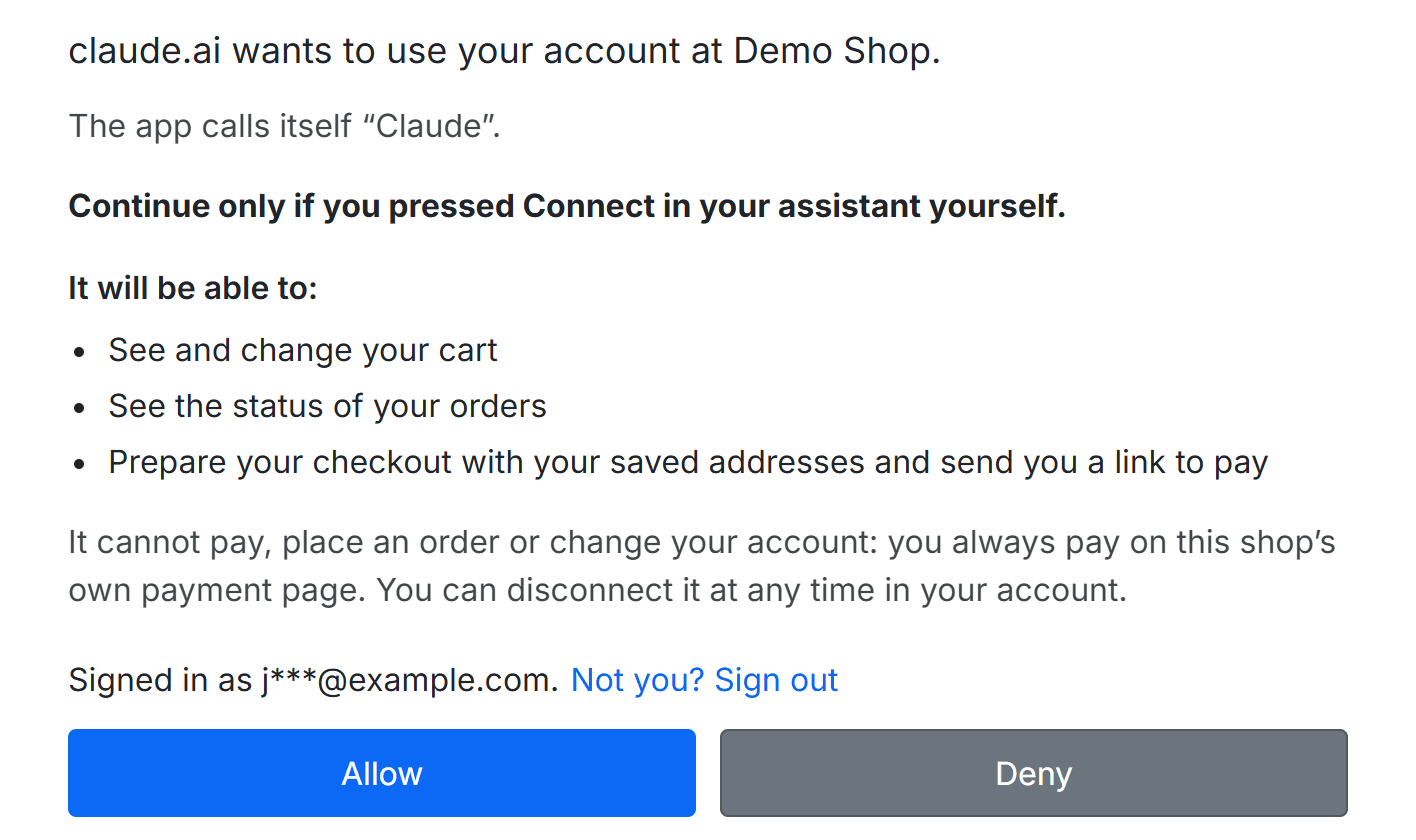
- Which app asks (for example Claude's website asking to use your account at …), with the name the app gave itself.
- "Continue only if you pressed Connect in your assistant yourself."
- What the app will be able to do, one line per permission: the cart, the orders, the checkout.
- That it cannot pay, place an order or change the account, and can be disconnected at any time.
- The account the buyer is signed in with, and Not you? Sign out.
- Allow connects; Deny does not.
- An account created during a guest checkout, without a password, cannot be connected: the page asks the buyer to create an account with a password first.
- With Email buyers when an assistant connects on, the buyer gets an e-mail the first time an app is connected, with a link to end the connection.
- A connection lasts while the buyer uses it; after Days an unused connection lasts without use, the buyer connects again. A password change or reset ends every connection of that account.
What buyers' assistants can and cannot do
With a connected account, and only for the tools you switched on, the assistant can show the cart, add and remove products or empty the cart (your stock, minimum quantities and cart rules apply as on the website), apply or remove a discount code the buyer gives it, tell the status of the buyer's own orders, send a return or cancellation request for them (see Return and cancellation requests), prepare the checkout (it picks a saved delivery address and a carrier, or asks which one when there are several) and tell whether that checkout was ordered. Without a connected account it can still search your catalogue, read products, answer questions about your shop and, when Estimate shipping is on, estimate delivery costs. The tools that act on a browser page (Show a product option, Open a shop page) are never offered to phone assistants; with Cart links for AI assistants on, the assistant can give the buyer a link that fills their cart on your shop instead (see Cart links for AI assistants).
It cannot pay, place an order, add or change addresses, change the account, see other customers or see payment details. Of a saved address the assistant sees only its name and city ("Home, New York"); the buyer sees the full address on your payment page.
Safety and the confirm step
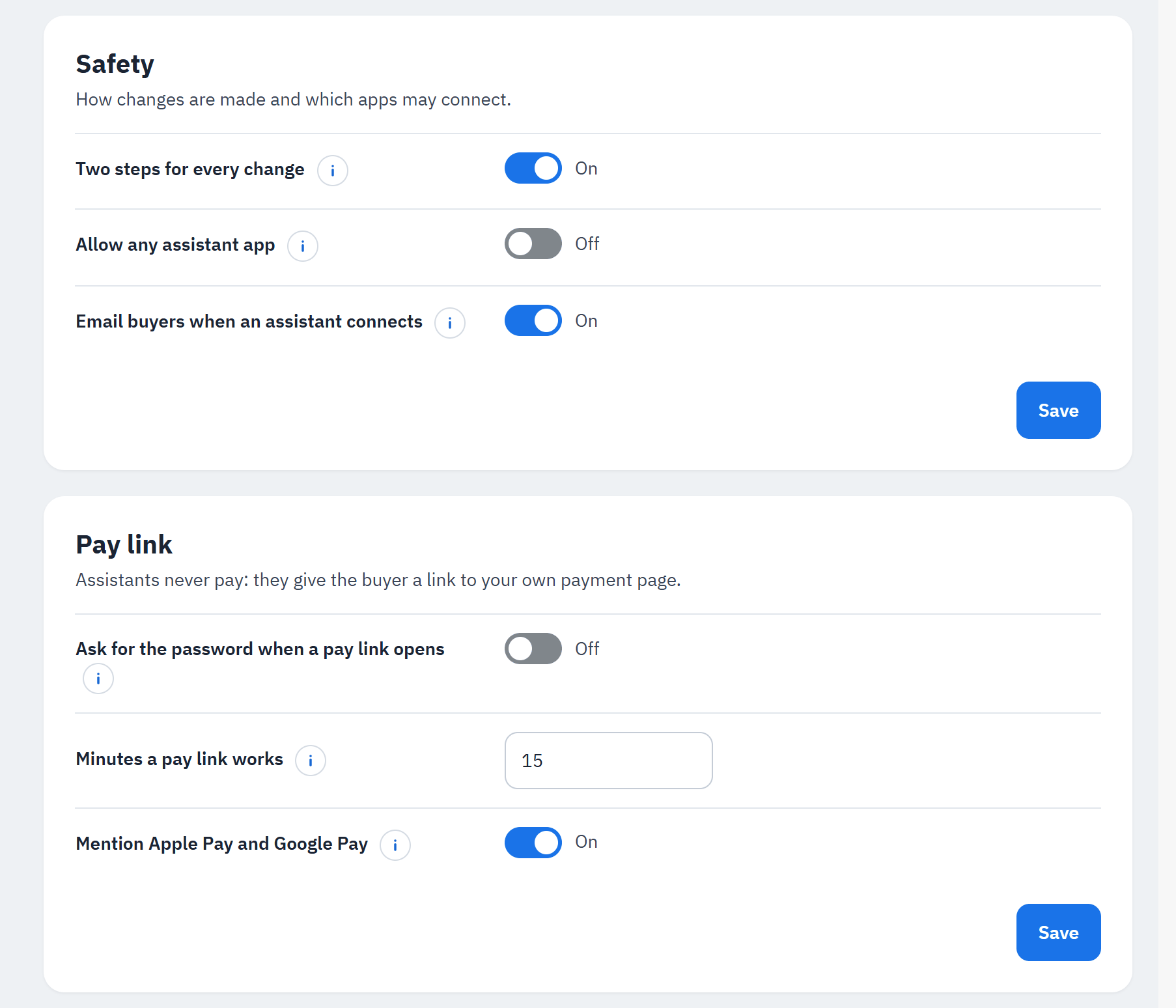
Safety ("How changes are made and which apps may connect.")
- Two steps for every change (on): before a cart change or a prepared checkout, the shop answers with the change and a one-time code, and makes the change only when the assistant sends the same change again with that code. ChatGPT and Claude usually show the change to the buyer and ask before the second call. The assistant may send it by itself, so this is no check by a person: it makes sure what is made is exactly what was shown.
- Allow any assistant app (off): only ChatGPT and Claude can connect. Turn it on to let other apps connect too, such as MCP Inspector for tests. Buyers still sign in and allow each app themselves.
- Email buyers when an assistant connects (on).
The checkout link
Pay link ("Assistants never pay: they give the buyer a link to your own payment page.")
- Ask for the password when a pay link opens (off): the link opens your payment step signed in, for this checkout only; account pages (orders, addresses, personal data) still ask for the password, so a forwarded link cannot read the buyer's account. That sign-in ends a few hours after the link expired, and when you disable or uninstall the module in the Module Manager. Turn it on to ask for the password before the payment step too.
- Minutes a pay link works (15, from 5 to 60). Each link works once, only for that buyer's checkout in that shop. If it expired or was used, the buyer asks the assistant for a new one.
- Mention Apple Pay and Google Pay (on): when your payment module is set up for Apple Pay or Google Pay, the assistant may tell the buyer they will likely see them on the payment page; the phone decides whether they appear.
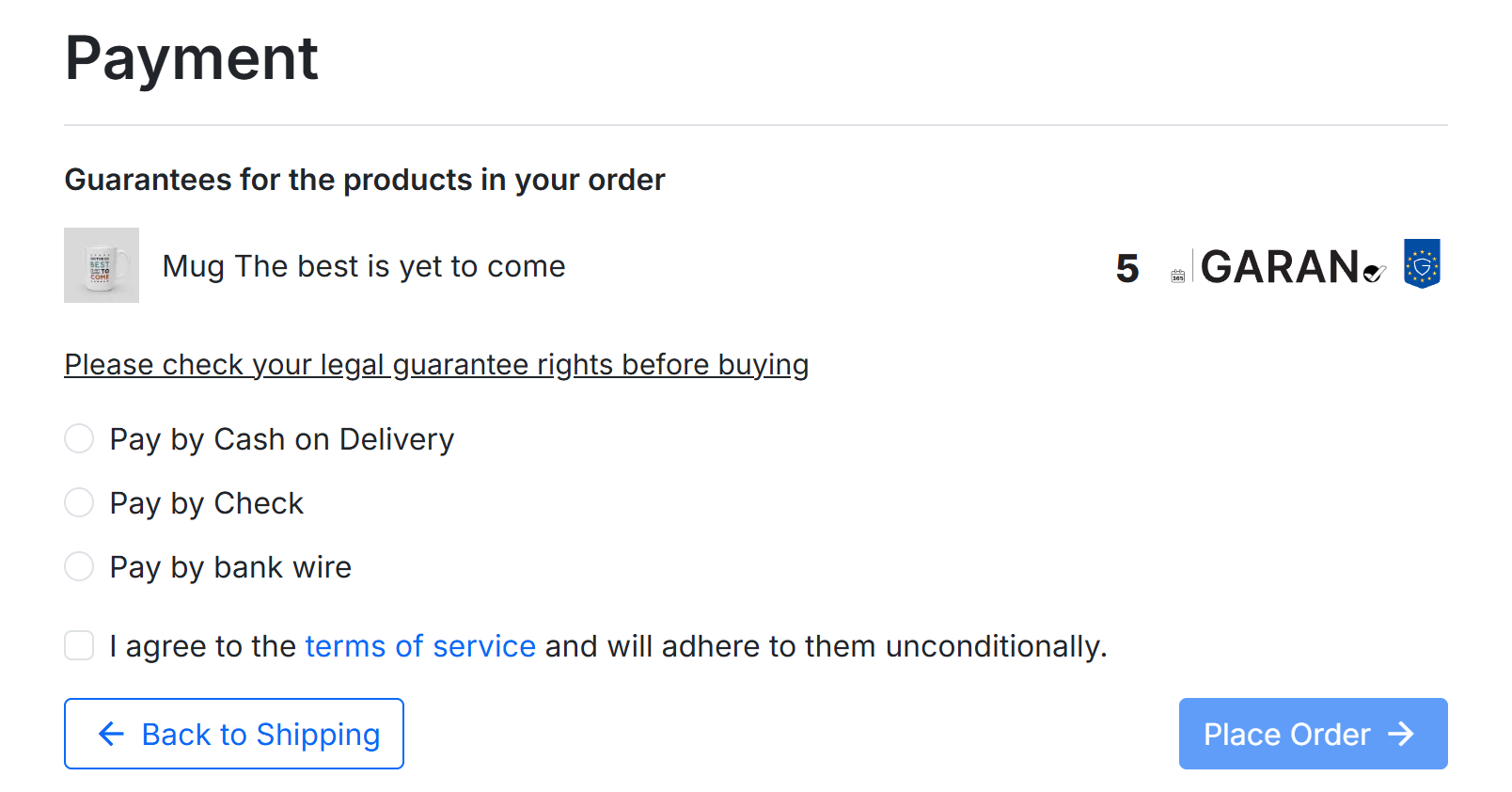
The link opens your own payment step with the assistant's cart, address and carrier, and your payment modules. If the
cart changed after the checkout was prepared, the link still opens it, and your payment module checks the amount as
for any order. The secret part of the link travels after a #, which browsers never send to servers: it stays out of
your server's logs and statistics. The link first opens a small page of the module that needs JavaScript; without
JavaScript it offers to sign in or see the cart instead. When a wallet was expected but the browser the link opened in
(often the assistant's built-in browser) offers none, the payment page shows a short note with a "Continue in your
browser" link.
Apple Pay and Google Pay. When your payment module is likely to offer a phone wallet and Mention Apple Pay and Google Pay is on, Prepare checkout gives the assistant a sentence for the buyer, such as "You can pay with Apple Pay or Google Pay in one tap on the shop's payment page, on a phone that supports them. If the button does not show in the assistant app, open the link in Safari or Chrome." The module reads the settings of the payment modules known for wallets (PrestaShop Checkout, Stripe, Mollie, Adyen, PayU); when a module's settings do not tell, nothing is promised. Diagnostics shows what it found in the row Phone wallets (Apple Pay, Google Pay) of the audit (see Can AI agents shop here? (the audit)). The module never sees or stores payment details.
Limits and advanced settings
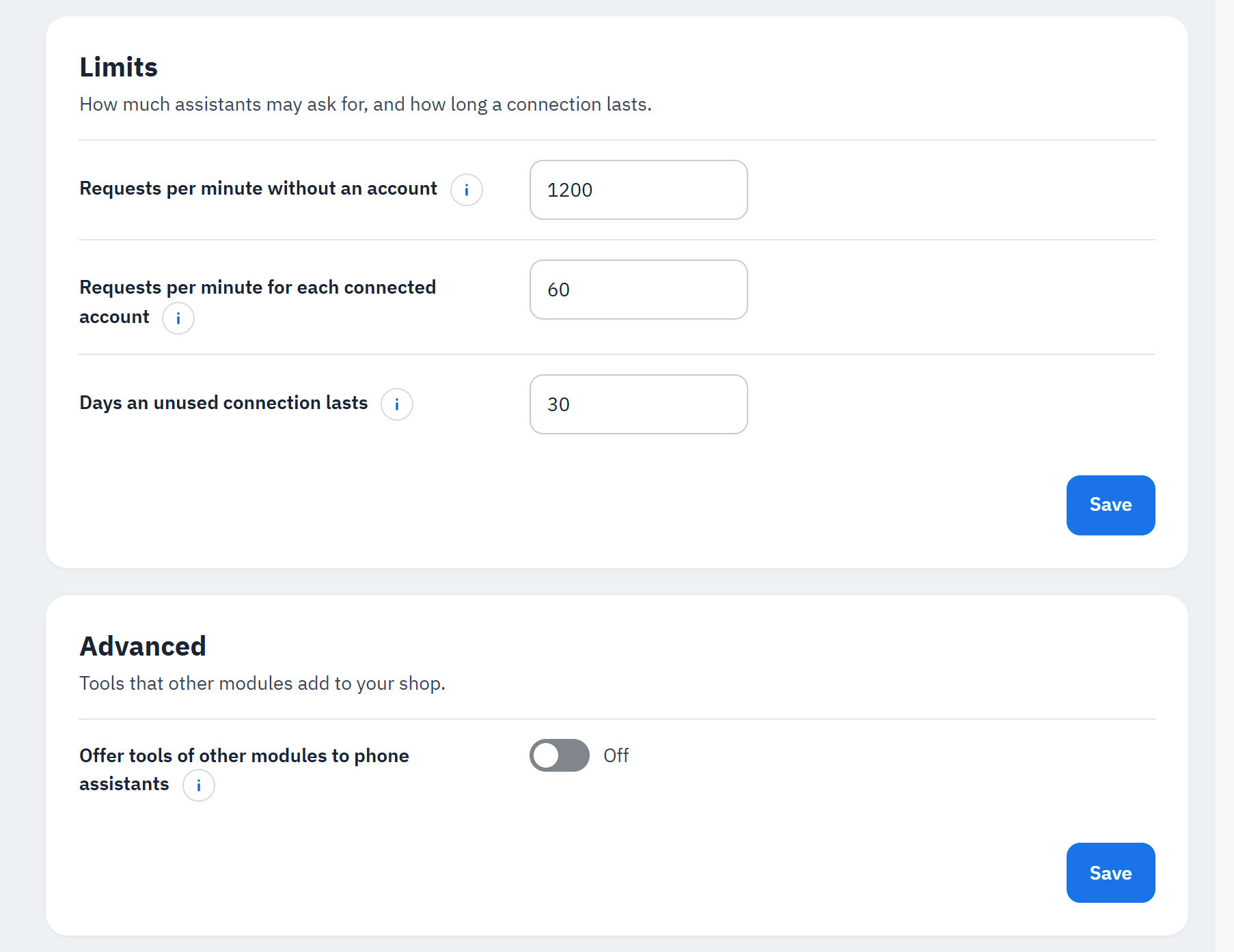
- Requests per minute without an account (1200, from 60 to 6000), per assistant address. ChatGPT and Claude send the calls of all their buyers from a few addresses, so keep it high.
- Requests per minute for each connected account (60, from 10 to 300).
- Days an unused connection lasts (30, from 1 to 90).
- Offer tools of other modules to phone assistants (off): tools of other modules were written for a browser page; turn this on only when their developer says they work without one. Each tool still needs its own switch in Tools.
A refused call is answered "too many requests"; the assistant can try again after a minute. Order status lookups are limited to 10 a minute per buyer.
Connected apps and disconnecting
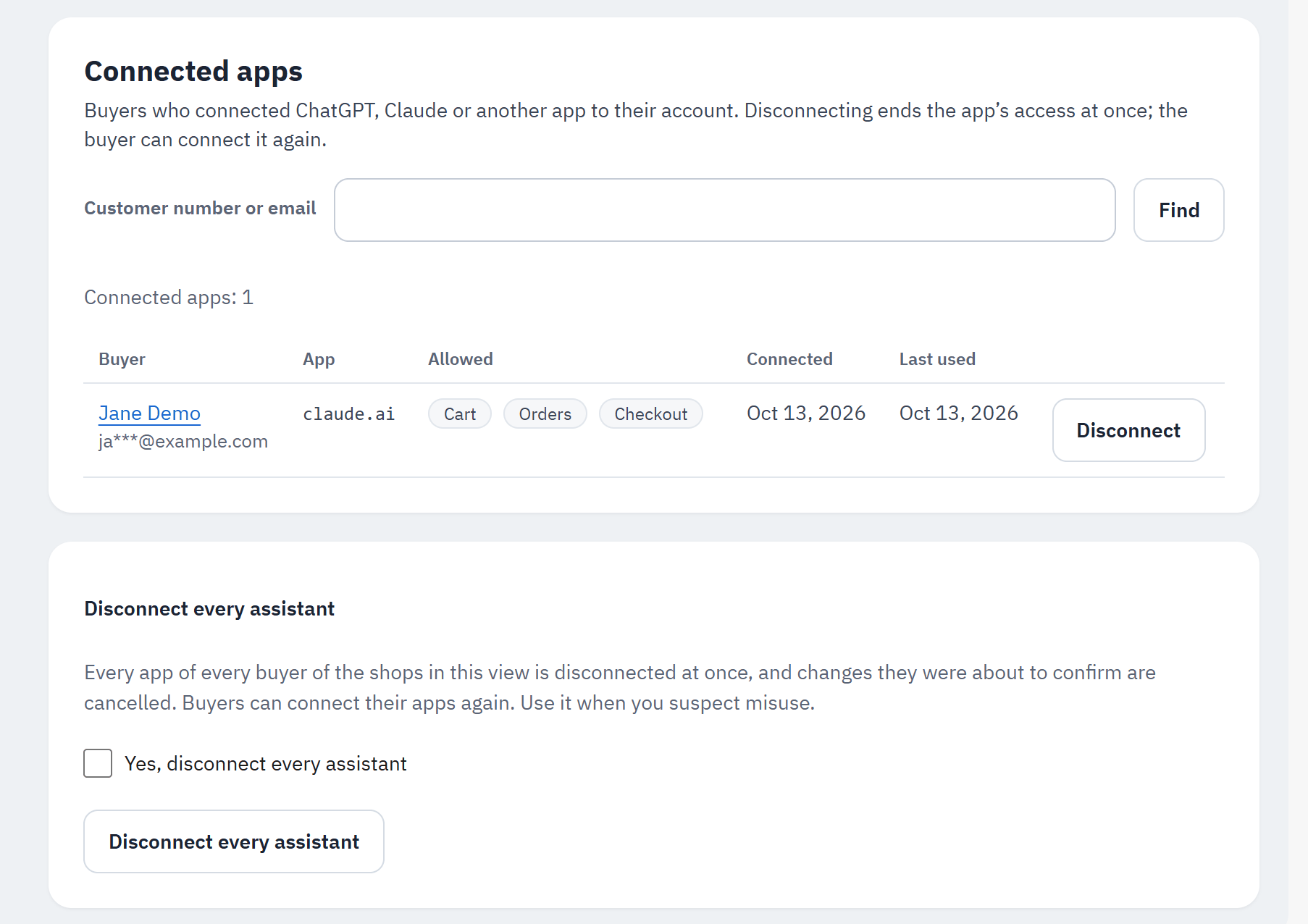
- Find a buyer by customer number or e-mail.
- Each connection: buyer (name and masked e-mail), app, what it may do (Allowed), Connected, Last used.
- Disconnect ends that connection at once; the buyer can connect the app again.
- Disconnect every assistant, in its own closed card: tick Yes, disconnect every assistant, then confirm. Every app of every buyer of the shops in this view is disconnected, and changes they were about to confirm are cancelled. Use it when you suspect misuse.
Buyers see and end their own connections in My account › Connected assistants:
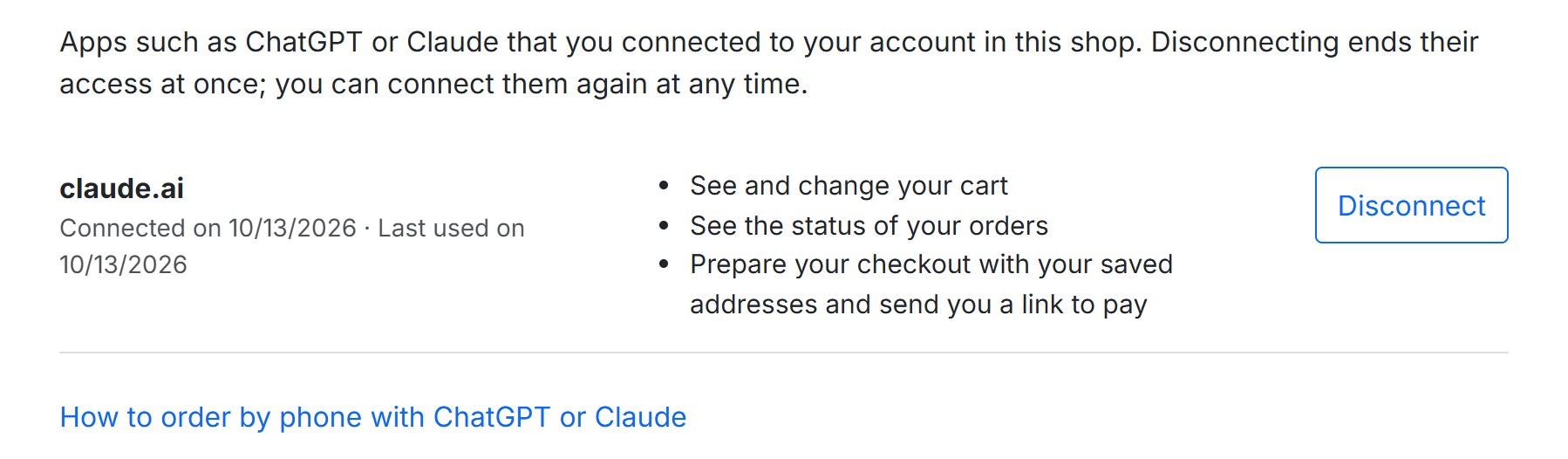
- Each connected app, when it was connected and last used.
- What it may do.
- Disconnect (and Disconnect all when there are several).
Deleting a customer deletes their connections.